

Usage steps
-
For GoHighLevel, open CRM and select Connect on its card.
-
Enter Integration Name and the API Key requested by the form. Review Set as Default, then select Add Integration when ready.
-
For messaging, open SMS messaging and inspect the available services. The category lists Atomic, TouchSMS and Twilio.
-
For connected Twilio, review the available numbers and capabilities. Use the displayed inbound SMS webhook when configuring an approved inbound-message route.
-
Configure the relevant agent function or automation action and test with a controlled contact before relying on the integration.
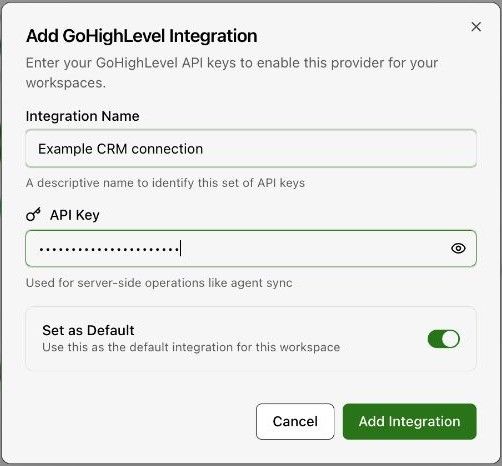
Expected result. The required CRM or messaging service is connected and ready for a configured workflow.
Practical notes and troubleshooting. SMS goes out from an SMS campaign or from a Send SMS step in an automation flow (Build and inspect an automation flow); both use the messaging connection configured here.