

Usage steps
-
In All Campaigns, use the search, status filter and schedule-date filter to find the campaign.
-
Review the status, recipient total, dialled count and processed progress. Open the campaign name or View for its details.
-
Use only the action available for the current status. A running campaign offers Cancel; campaigns cannot be paused from the dashboard.
-
Open Analytics and choose a reporting date range. Review Dials, Connected and Connectivity.
-
Use Overview, Lines or Table to inspect the data, and switch between Connectivity % and Connected count. Compare percentages with their underlying call volume.
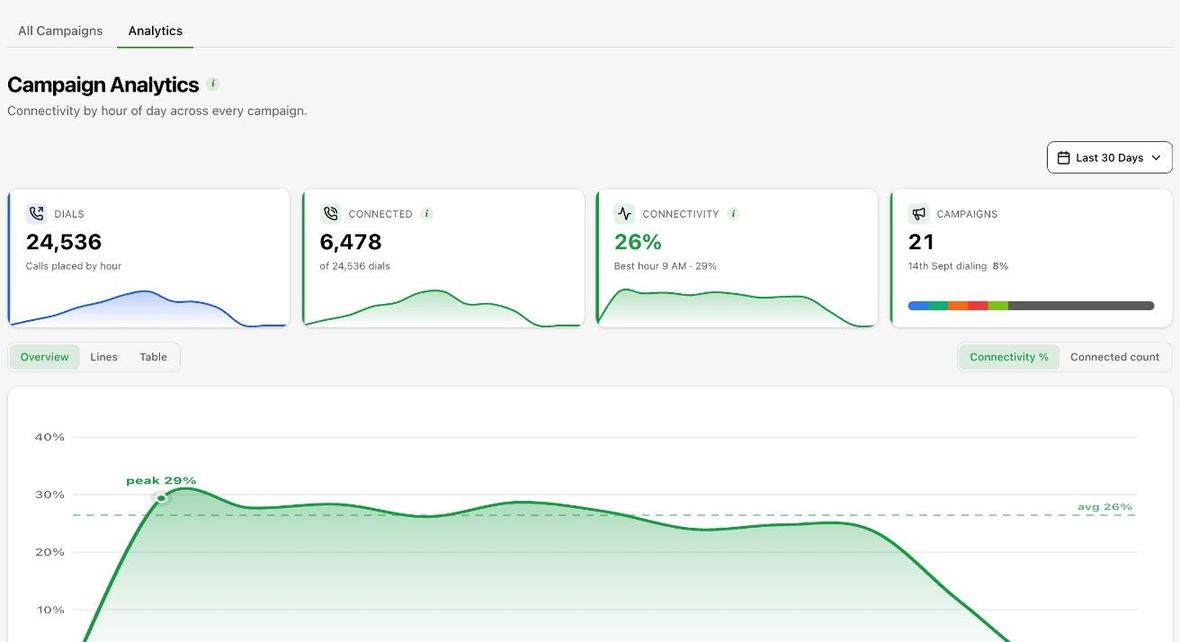
Expected result. You can monitor campaign completion and identify calling periods worth investigating.
Practical notes and troubleshooting. A high connection percentage based on very few calls can be misleading. Check the call count before changing the schedule.