

Usage steps
-
Prepare a short test script and make sure you are ready to speak. Web Call can start the session immediately.
-
Select Web Call. If your browser asks for microphone access, review and allow it for this test.
-
Check the greeting, pronunciation and responsiveness. Ask one question covered by the knowledge base and one question outside its scope.
-
Exercise any relevant tool using controlled test data. Check that the agent explains success or failure accurately.
-
Select End Call when finished. Review the resulting call record, including the transcript and summary when available.
-
Adjust the agent, save and repeat a focused test after meaningful changes.
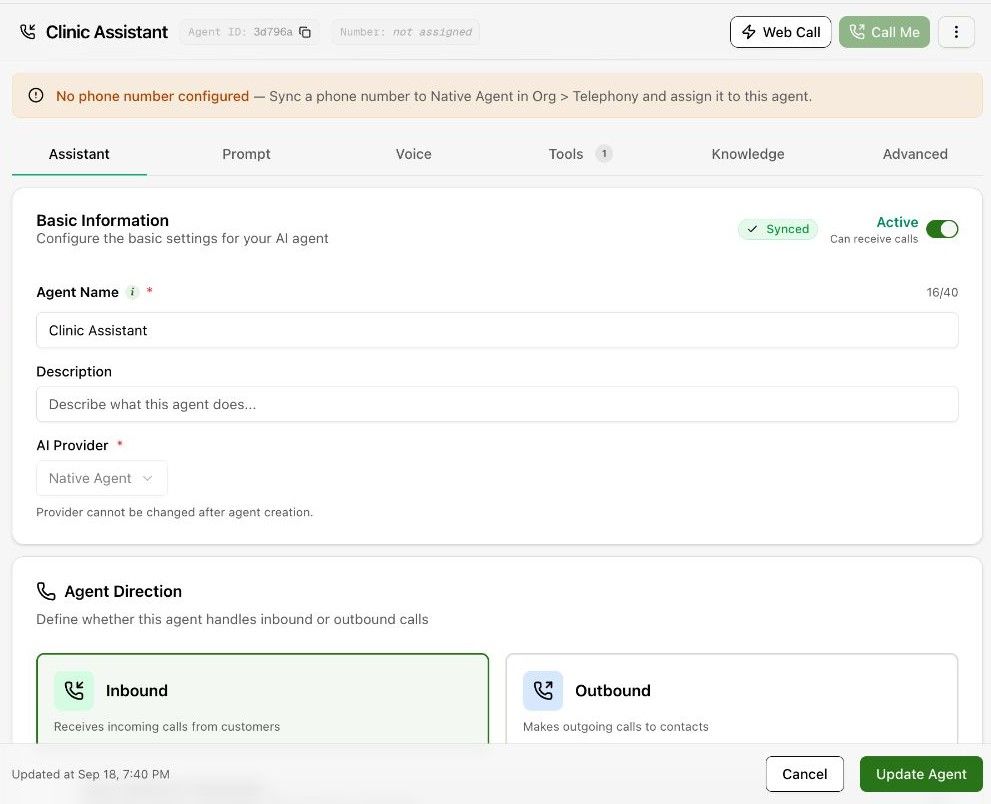
Expected result. You have heard the current agent and can review the conversation result.
Practical notes and troubleshooting. Call Me uses a phone-based test and requires the appropriate number setup. Check the destination and call action before placing a call.