
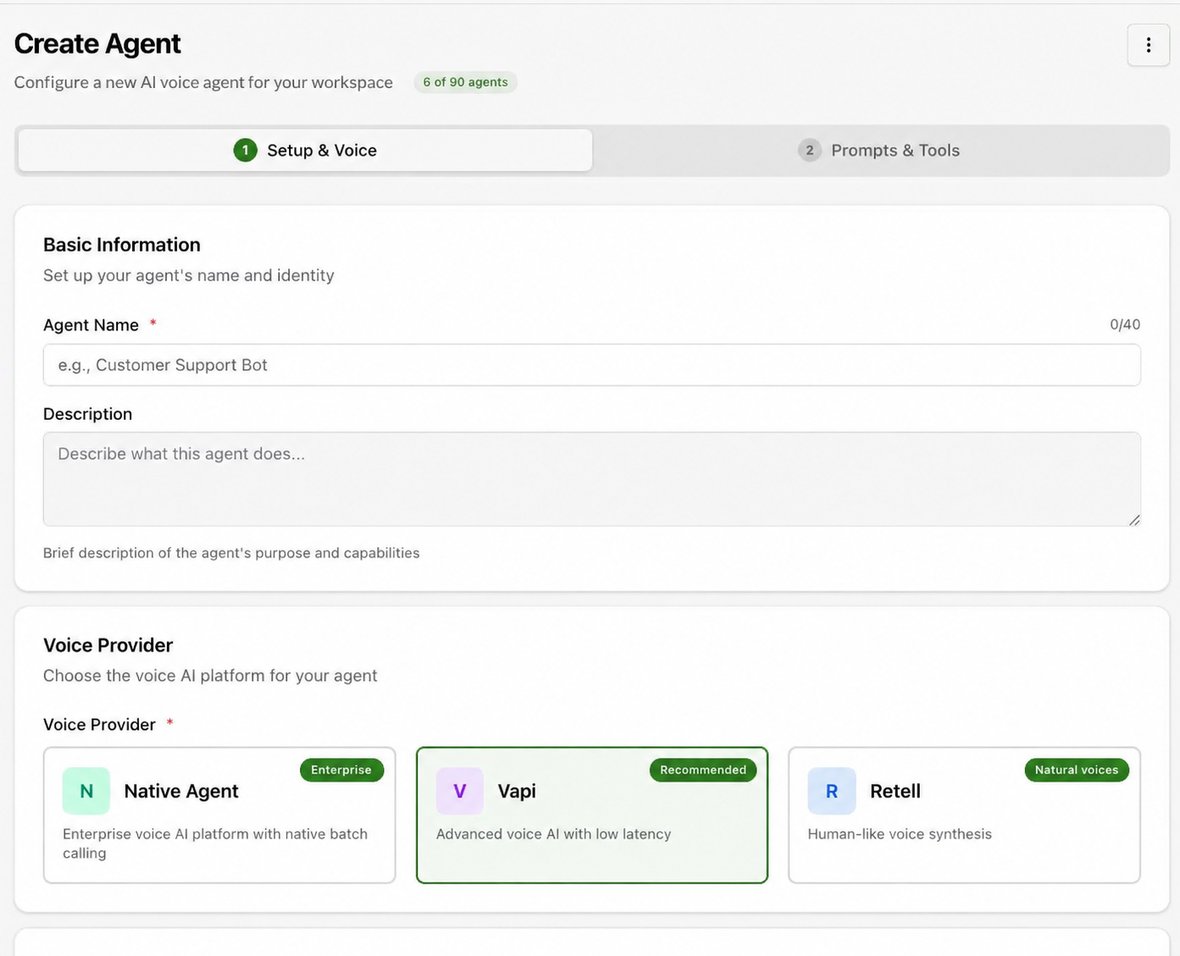
- 1Native Agent
- 2Vapi
- 3Retell
Compare the providers
Where a cell says the form shows its own options, check them in the form for that provider; they are not the same across providers.
| 1. Native Agent | 2. Vapi | 3. Retell | |
|---|---|---|---|
| Description on the form | Enterprise voice AI platform with native batch calling | Advanced voice AI with low latency | Human-like voice synthesis |
| Badge on the form | Enterprise | Recommended | Natural voices |
| Connection | Access to the native voice service | Vapi key under Integrations → Voice agents | Retell key under Integrations → Voice agents |
| Voice sources | ElevenLabs and Native audio | The options the form shows for Vapi | The options the form shows for Retell |
| Built-in tools | End Call, Transfer Call, Check Availability, Book Appointment | The tool fields the form shows for Vapi | The tool fields the form shows for Retell |
| Change after creation | Not possible. The editor states that the provider cannot be changed after creation. | ||
Steps common to every provider
-
Open Agents and select Create Agent at the bottom of the agent list.
-
Enter an Agent Name of up to 40 characters and an optional Description.
-
Choose the provider using one of the three paths below, then select Continue to move from Setup & Voice to Prompts & Tools.
-
Complete the required prompt and tool configuration, review the form and submit the creation action. Knowledge and an available phone number can be attached now or later.
-
Open the new agent and confirm its configuration and provider sync status before testing with Web Call.
1. Native Agent path
Native Agent is described on the form as an enterprise voice AI platform with native batch calling. This path needs access to the native voice service.
-
In Voice Provider, select Native Agent.
-
Choose Inbound to receive calls or Outbound to make them. For an inbound agent that should also join campaigns, review Allow Outbound Campaigns.
-
Choose the language model and a compatible voice. For a Native Agent, the Voice tab offers ElevenLabs and Native audio as voice sources; compare Native voices first in Resources → Voice Library.
-
Select Continue to reach Prompts & Tools. A Native Agent offers End Call, Transfer Call, Check Availability and Book Appointment as built-in tools, and its calendar tools list Cal.com.
2. Vapi path
Vapi is described on the form as advanced voice AI with low latency. A Vapi agent uses a Vapi connection held in Integrations.
Before you start: confirm that a Vapi key is connected under Configuration → Integrations → Voice agents. A key inherited from the organisation is marked Org default; the workspace’s own default is marked Default.
-
In Voice Provider, select Vapi.
-
Choose Inbound or Outbound.
-
Where the form offers a key selector, choose the Vapi integration this agent should use. If the key you need is missing, add it in Integrations with Connect or Add another key.
-
Choose the language model and a compatible voice from the options the form shows for Vapi. If the current voice is not found in the connected key, check the integration or choose another available voice.
-
Select Continue and configure the tool fields shown for Vapi. Do not assume they match the Native Agent tool list.
3. Retell path
Retell is described on the form as human-like voice synthesis, with a Natural voices badge.
Before you start: confirm Retell access for your organisation and, where the form offers a key selector, the Retell connection to use. Retell keys are connected under Integrations in the same way as Vapi keys; ask your administrator which key to use.
-
In Voice Provider, select Retell.
-
Choose Inbound or Outbound.
-
Where the form offers a key selector, choose the Retell integration this agent should use.
-
Choose the language model and a compatible voice from the options the form shows for Retell.
-
Select Continue and configure the tool fields shown for Retell. Do not assume they match the Native Agent or Vapi tool lists.
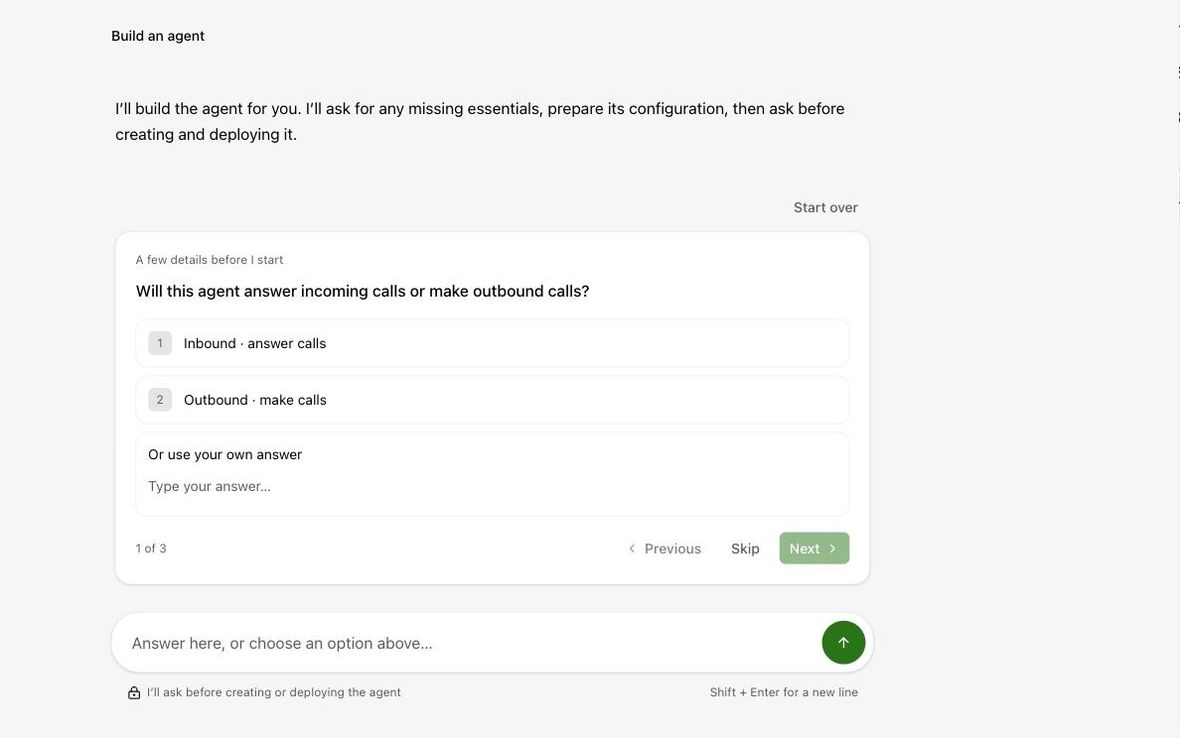
Start from Inspra Copilot instead
Inspra Copilot is an AI assistant that helps you build the agent from a plain-language brief. It is separate from the voice agent your callers speak to. Select Agents → Inspra Copilot; a Build an agent conversation opens in Home, asks guided questions, and states that it will ask before creating or deploying the agent. Inspra Copilot builds agents on Native Agent; use the form for Vapi or Retell. See Inspra Copilot for a full walkthrough, an example brief and a review checklist.