

Usage steps
-
Enter a recognisable Campaign Name and an optional Description explaining the goal or audience.
-
Choose Batch Concurrency within the range offered by the workspace. Start with a value appropriate for your operational capacity.
-
Select the AI Agent and confirm it is the tested agent you intend to use.
-
Review IVR and Call Screening if the campaign needs those handling options.
-
Review Double Dial. The interface describes this as an immediate second attempt when the first call is unanswered.
-
Select Next to configure the calling window and expiry.
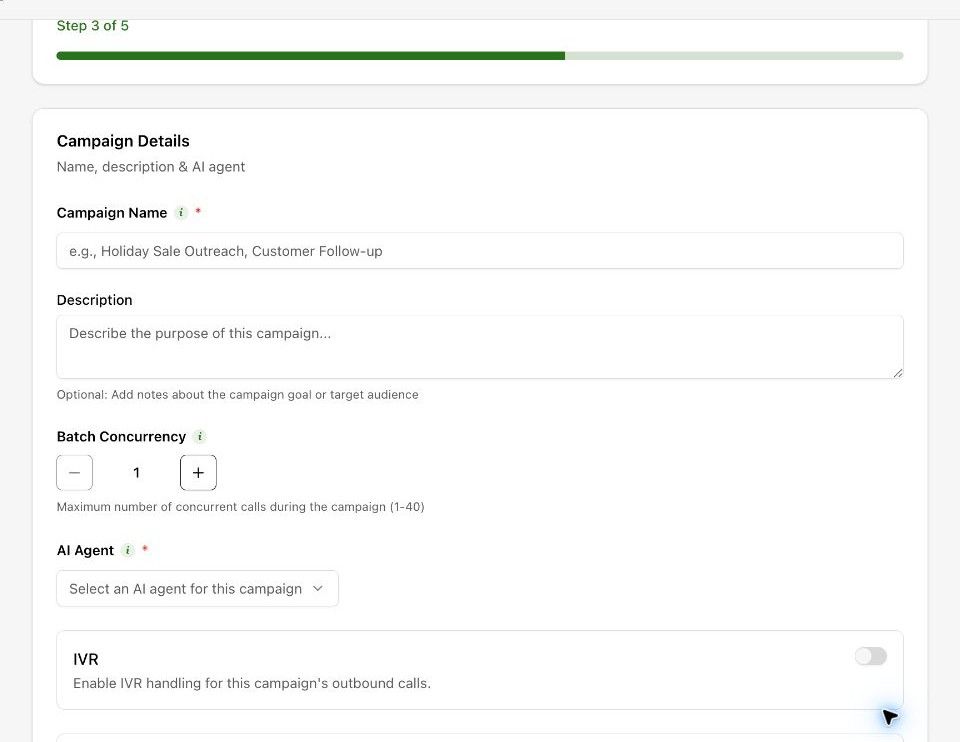
Expected result. The campaign has an identified agent and dialling configuration.
Practical notes and troubleshooting. Use the limits shown in your current workspace. Do not assume another workspace has the same concurrency allowance.