

Usage steps
-
Choose Start Immediately or Schedule for Later. For a scheduled start, enter the requested date and time.
-
Set Campaign Expiry Date & Time. The interface states that an unfinished campaign is automatically cancelled at expiry.
-
In Business Hours, select the Timezone. Check the displayed timezone and offset alongside the schedule.
-
Enable the intended weekdays and set their allowed time ranges. Disable days on which no calls should be made.
-
Review Holidays before continuing. On the final review page, compare the summary with the hours you entered and return to edit any discrepancy.
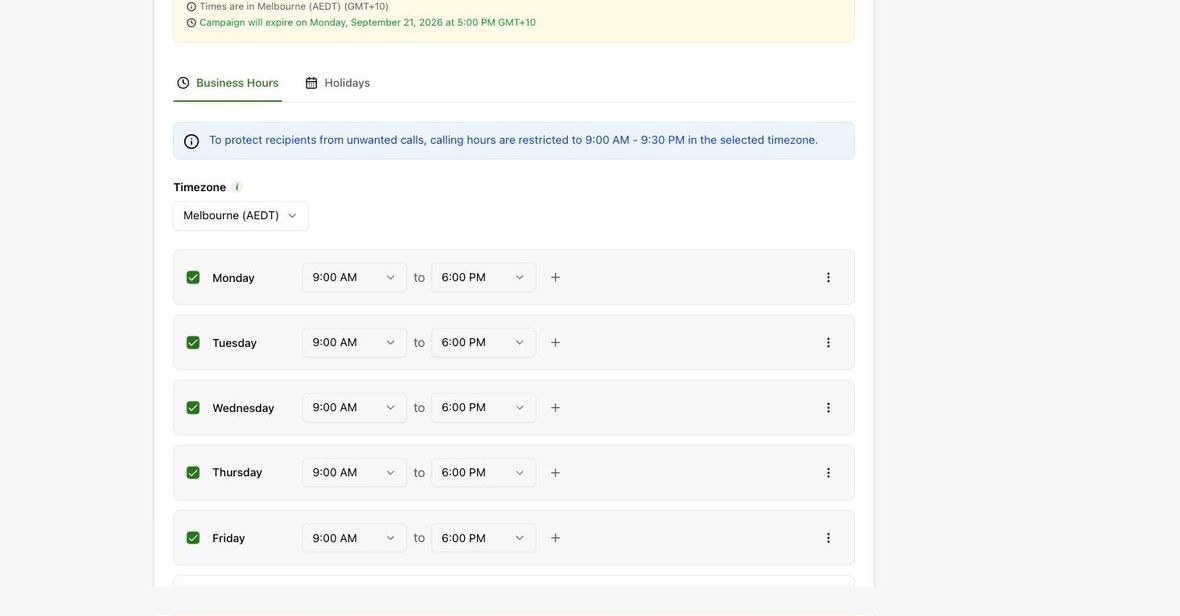
Expected result. The campaign has a reviewed start, expiry, timezone and daily calling window.
Practical notes and troubleshooting. The dashboard restricts calling hours to 9:00 am to 9:30 pm. This is a product control; your applicable calling requirements may be narrower.