

Choose your path
Most readers work in the dashboard. Developers who connect other systems also need the credentials and events that the dashboard manages. The two paths are kept separate so that each reader only follows the steps that apply.
How to use this guide
Follow the navigation path stated beneath each workflow’s introduction. Screenshots show the relevant controls; your own names, counts, connected providers and enabled options may differ from the illustrations, since they were captured in one example workspace. On this page, select a screenshot or its View full size link to inspect the controls in a new tab.
Choose the correct workspace before making changes. Save configuration changes before testing. Creating a campaign, starting a test, sending a message or activating an automation is an operational action and may use connected services or credits.
The first agent sequence
- Define the conversation goal and boundaries.
- Create the agent and choose its voice.
- Write the prompt and attach approved knowledge.
- Configure any required tools and analysis.
- Test the agent and review the conversation.
- Connect a number or create a reviewed campaign.
- Monitor calls and improve the configuration.
Agent providers
Every agent is created on one provider, and the provider determines which voice, model and tool options the form shows. This documentation always presents the providers in the order below and walks through Native Agent first. The provider cannot be changed after the agent is created.
- 1Native Agent
- 2Vapi
- 3Retell
See Create an agent and choose a provider for the comparison and a separate setup path for each provider.
Build
An agent combines a provider, a voice, a first message, a prompt, approved knowledge and the tools it needs. Start from the form for direct control, or describe the job in plain language to Inspra Copilot, an AI assistant that prepares a configuration for your review.
Create an agent with the form
In Agents, select Create Agent. Name your agent and choose Native Agent, Vapi or Retell, then configure its direction, model and voice.
Read the guide : Create an agent with the form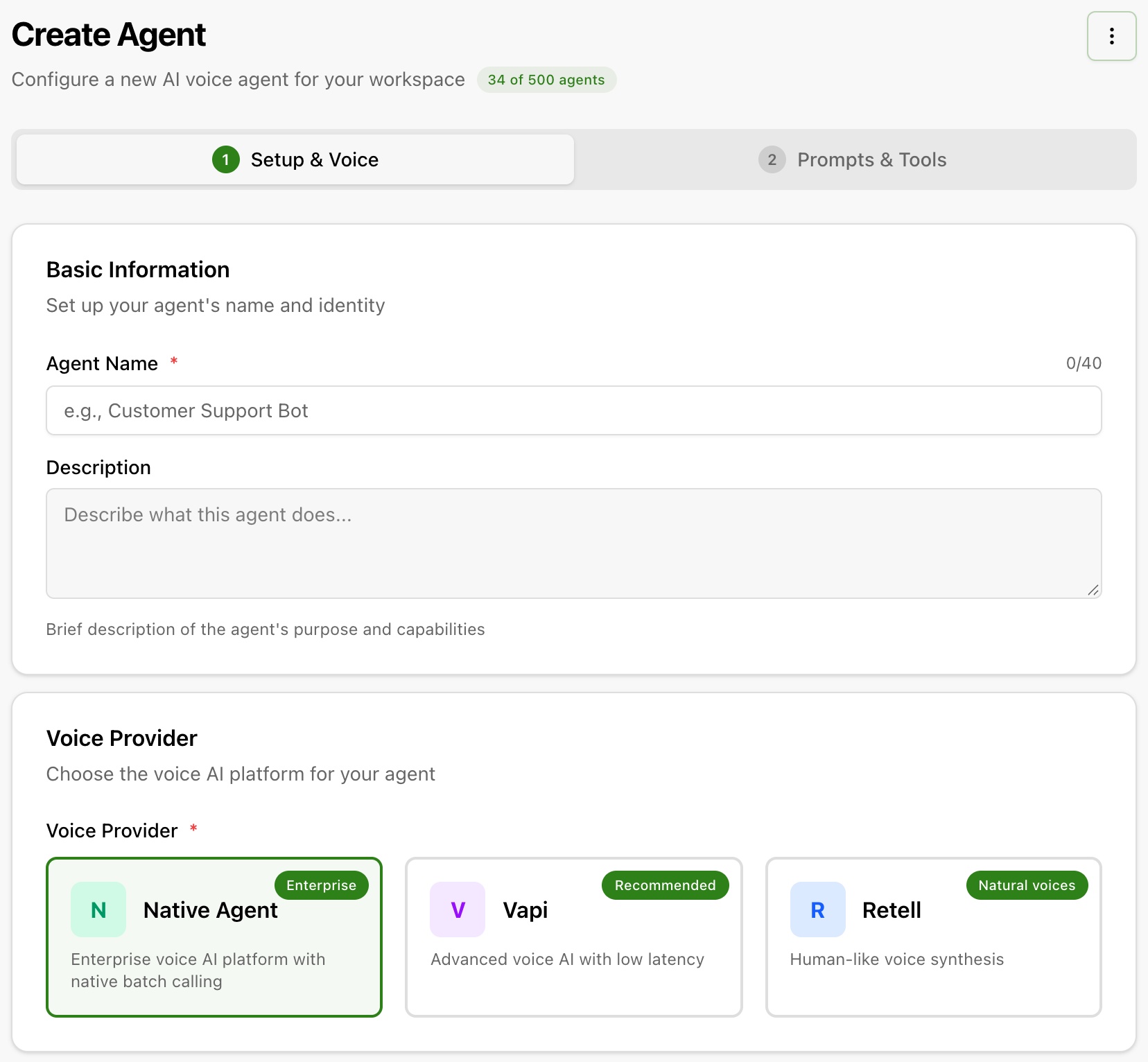
Inspra Copilot
Select Build with Composer in Agents, then describe the job. Review the proposed configuration before creating the agent.
Read the guide : Inspra Copilot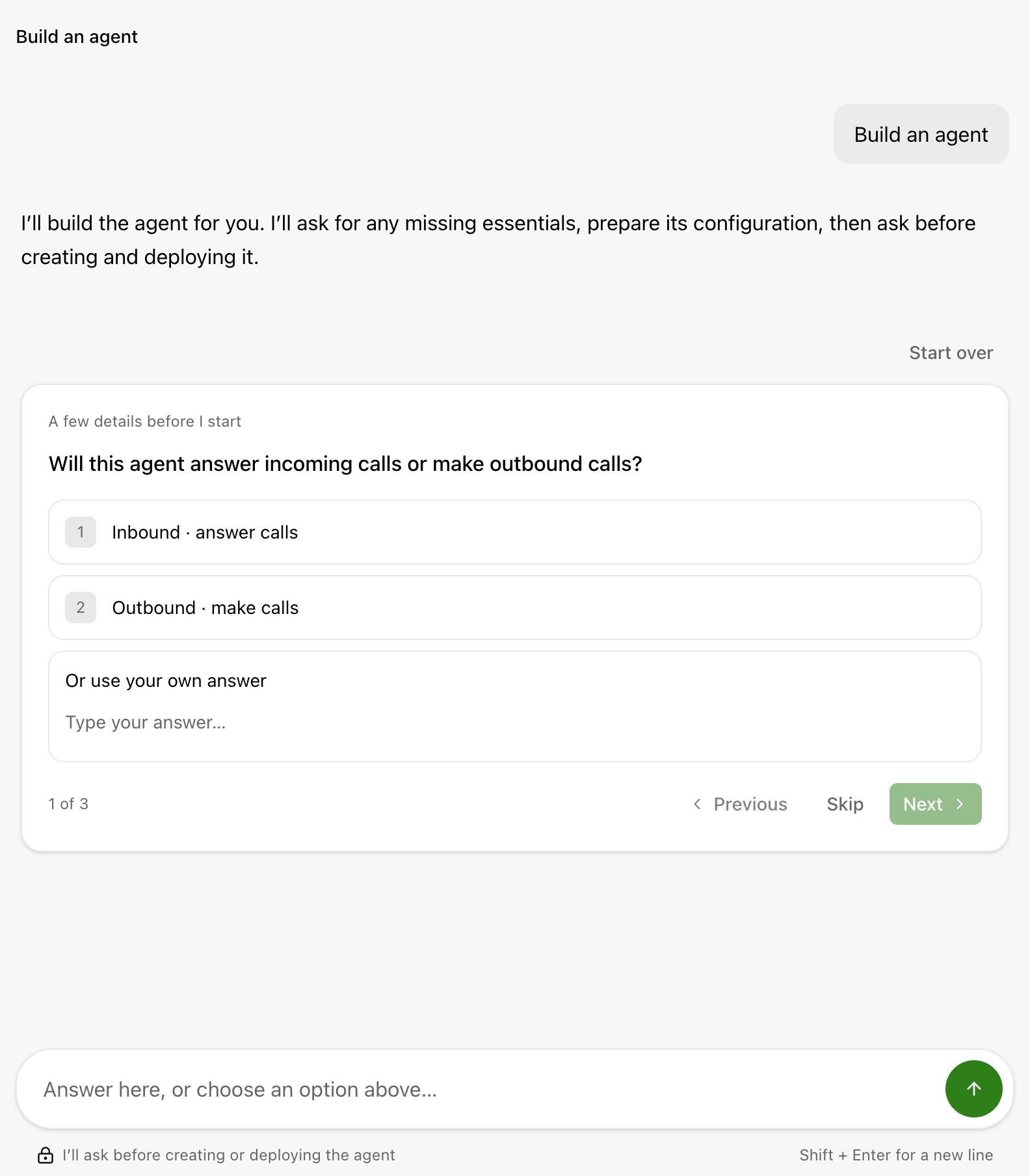
Write the opening message and prompt
Open the agent's Prompt tab. Set who speaks first, write the greeting, and use the system prompt to define its scope and how it handles missing information.
Read the guide : Write the opening message and prompt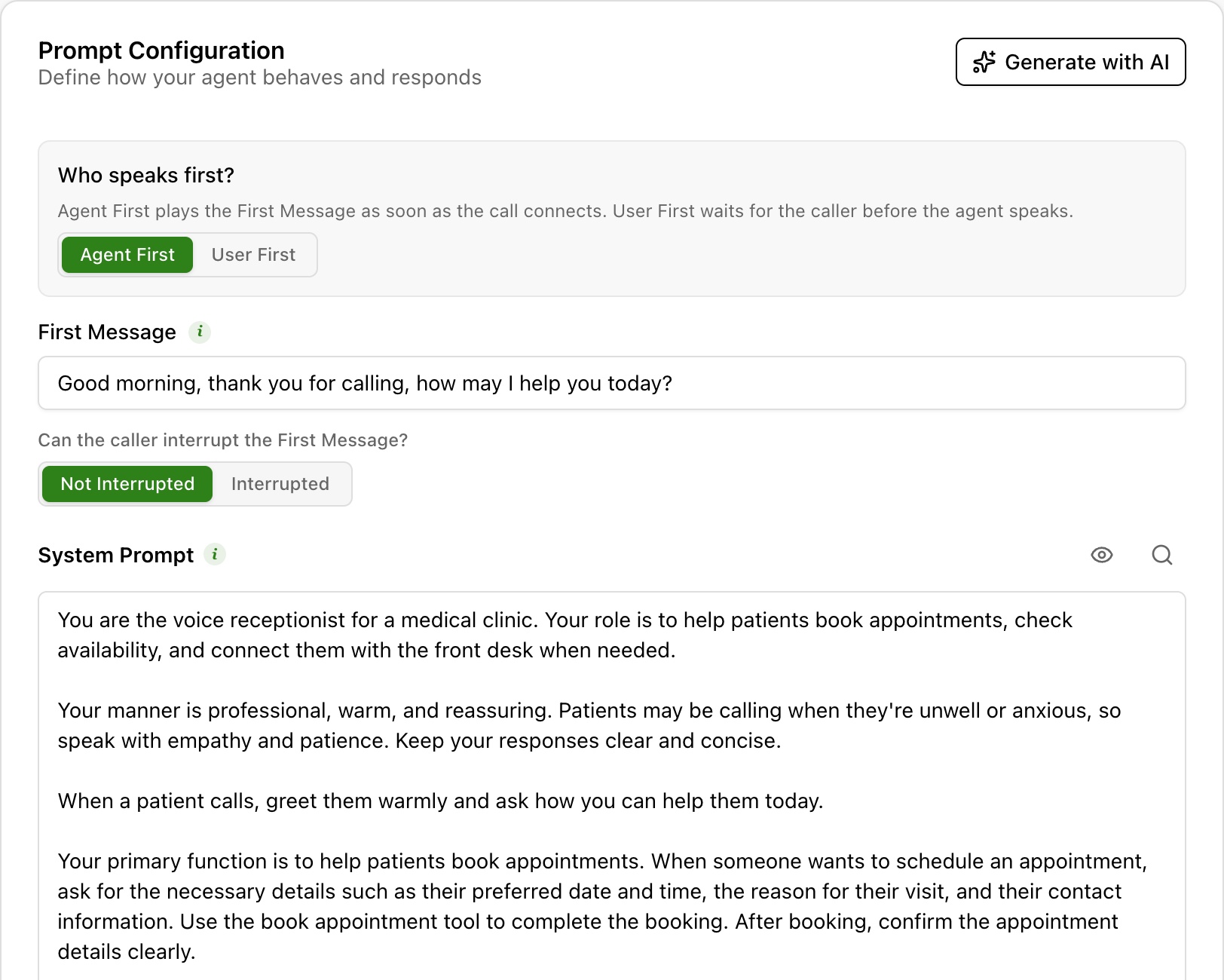
Create a knowledge document
In Knowledge Base, select Add Document and choose Write Content. Add a title and approved information, then attach the document to your agent.
Read the guide : Create a knowledge document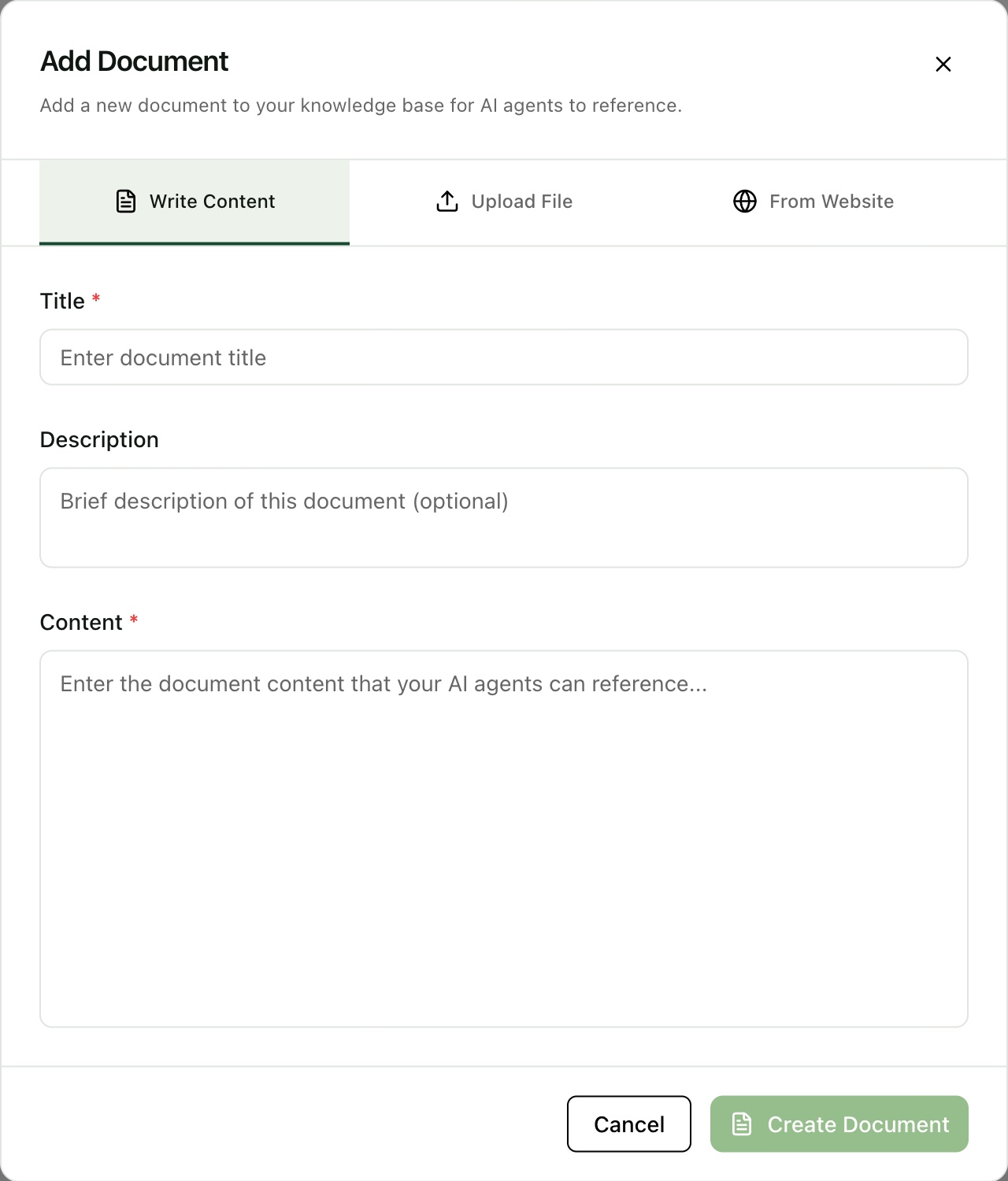
Test
Hear the agent before it reaches a customer. Browser calls check the greeting and behaviour; simulated scenarios and scorecards repeat the same checks after each change.
Test with a browser call
Speak to the agent from your browser, try an edge case and review the call record.
Read the guide : Test with a browser call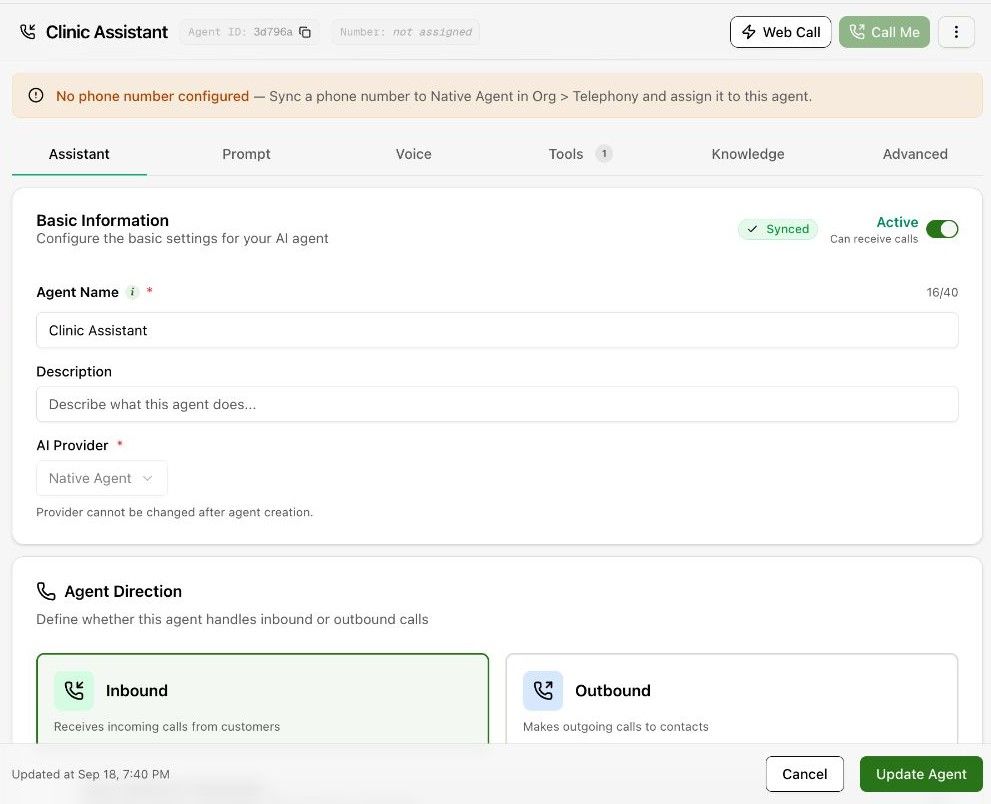
Create a simulated test scenario
Describe a caller and the expected behaviour, then run it against the agent.
Read the guide : Create a simulated test scenario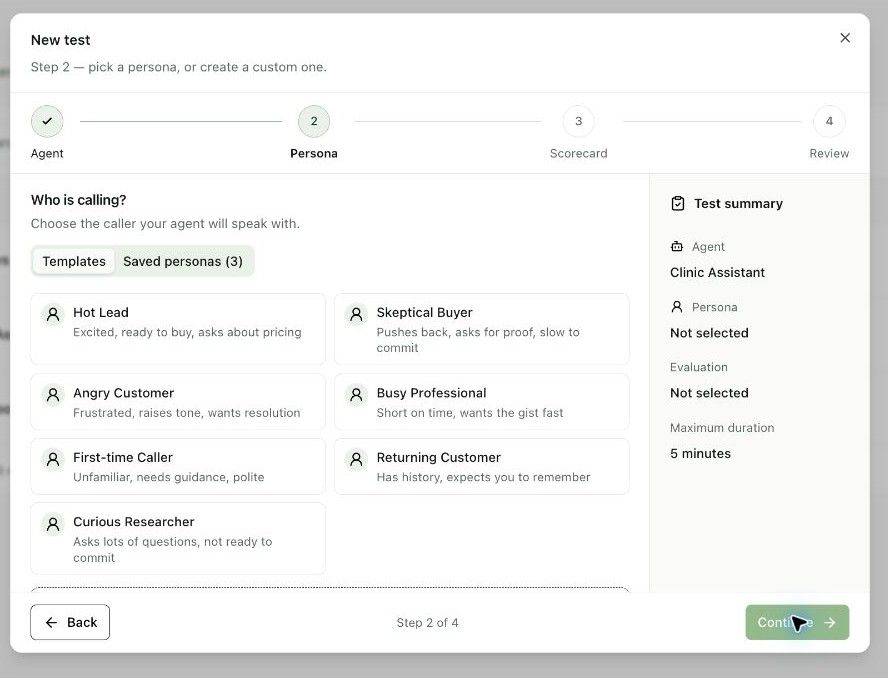
Configure call analysis and scorecards
Decide what each call is evaluated on before you rely on the results.
Read the guide : Configure call analysis and scorecards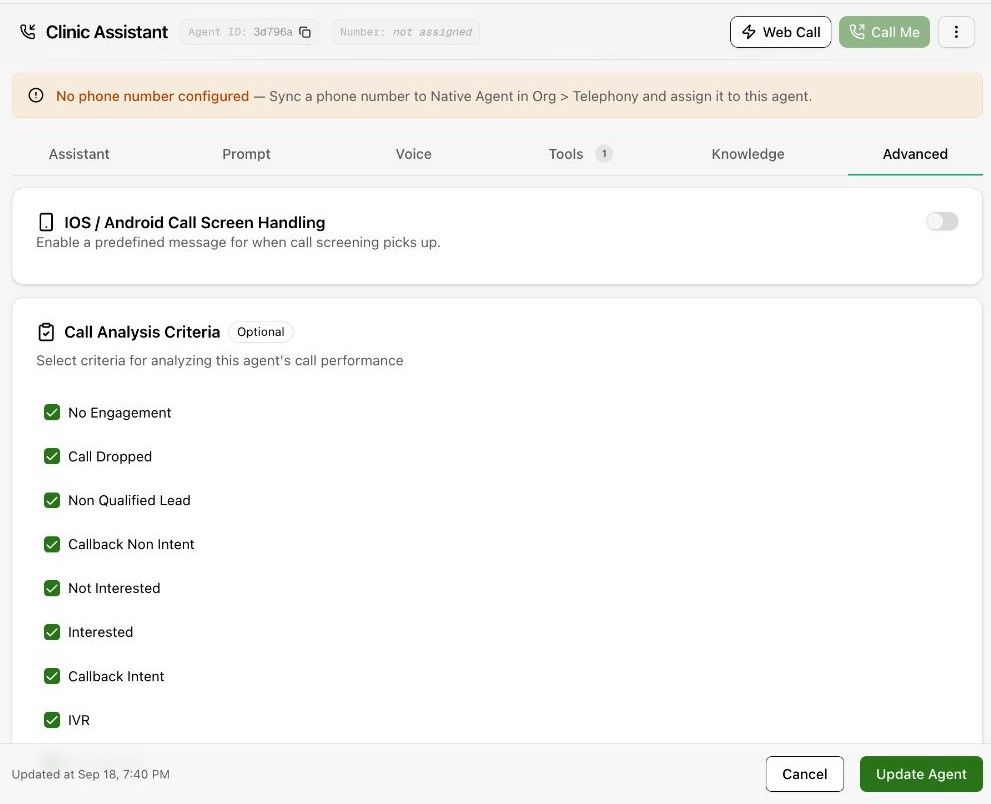
Deploy
Assign a number to an inbound agent, or import a recipient list into an outbound campaign. WhatsApp conversations are handled in a Twilio-synchronised inbox. SMS goes out from an SMS campaign or a Send SMS step in an automation flow.
Add a number and receive inbound calls
Link a number to its SIP trunk and inbound agent, then place a controlled test call.
Read the guide : Add a number and receive inbound calls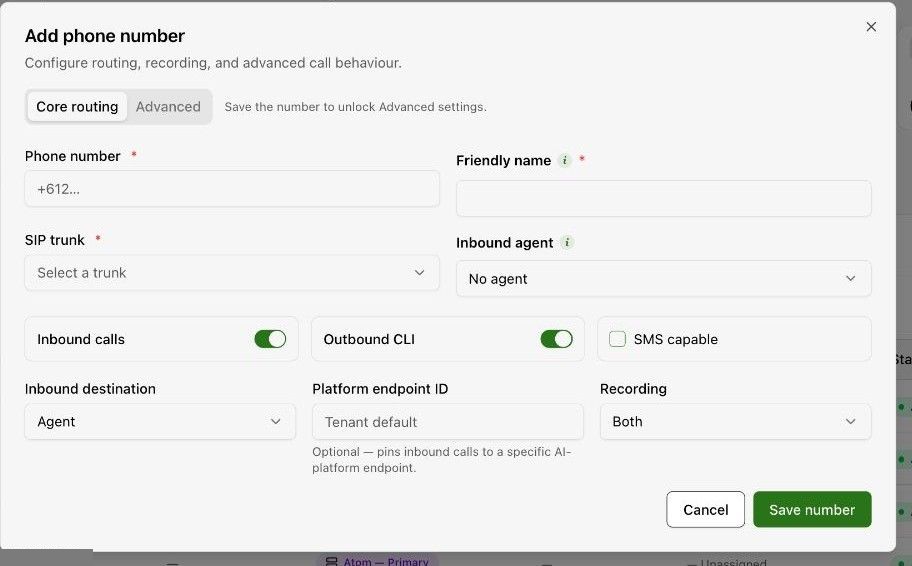
Prepare and import campaign recipients
Upload a CSV with customer_phone and the columns your prompt uses.
Read the guide : Prepare and import campaign recipients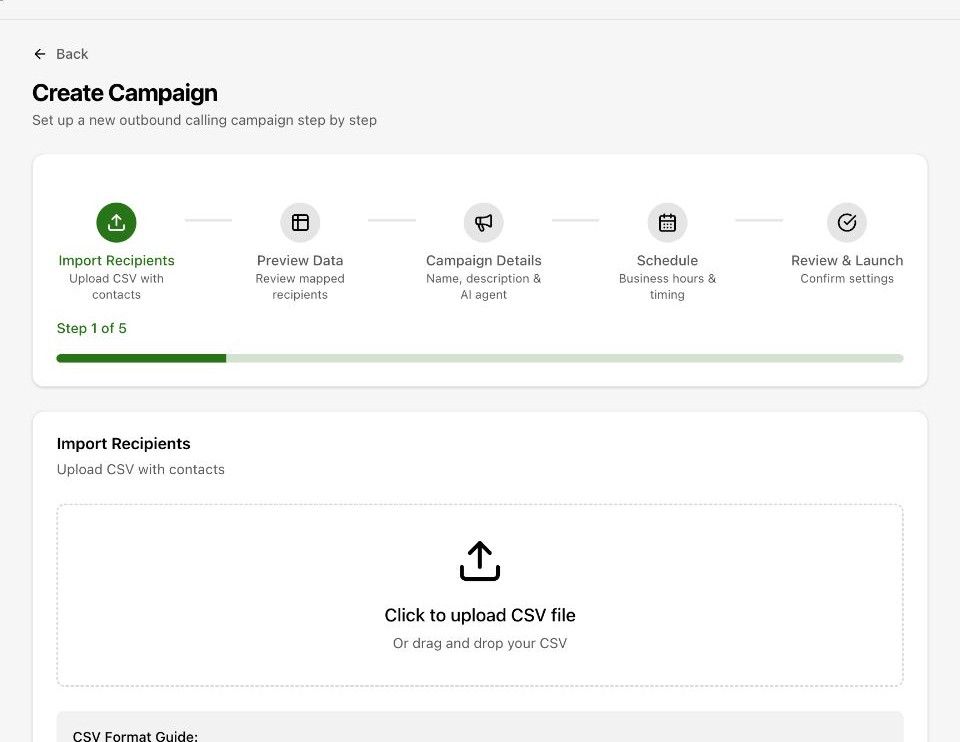
Work with WhatsApp conversations
Find or start a thread in the Twilio-synchronised inbox.
Read the guide : Work with WhatsApp conversations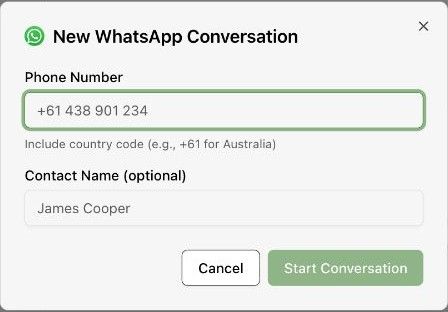
Manage SMS conversations
Open SMS to review conversations and replies. Use Logs to check message status, Templates for reusable messages, and Settings for sending preferences. Phone numbers are blurred in this screenshot.
Read the guide : Manage SMS conversations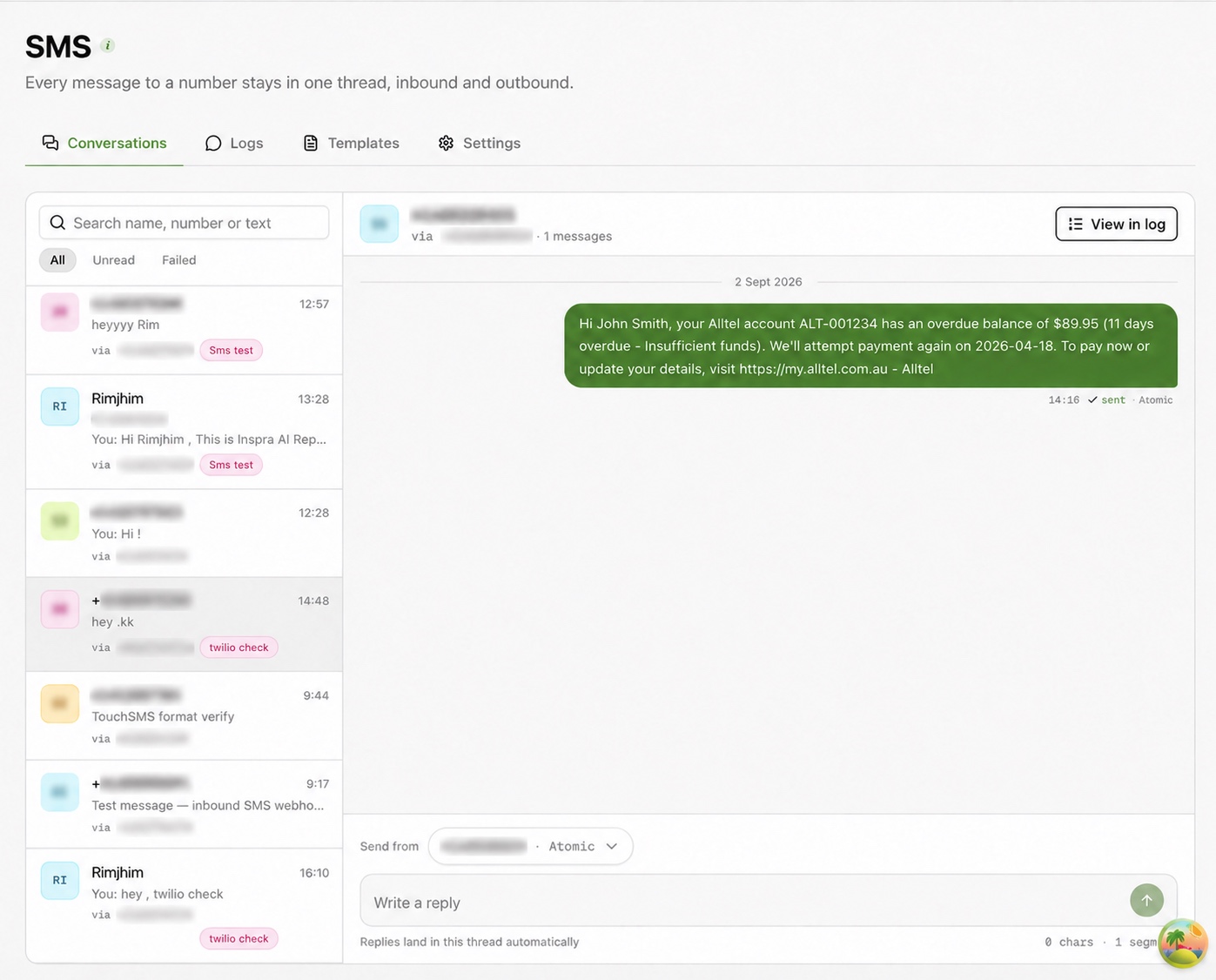
Build and inspect an automation flow
Connect a trigger to steps such as Send SMS, then test before activating.
Read the guide : Build and inspect an automation flow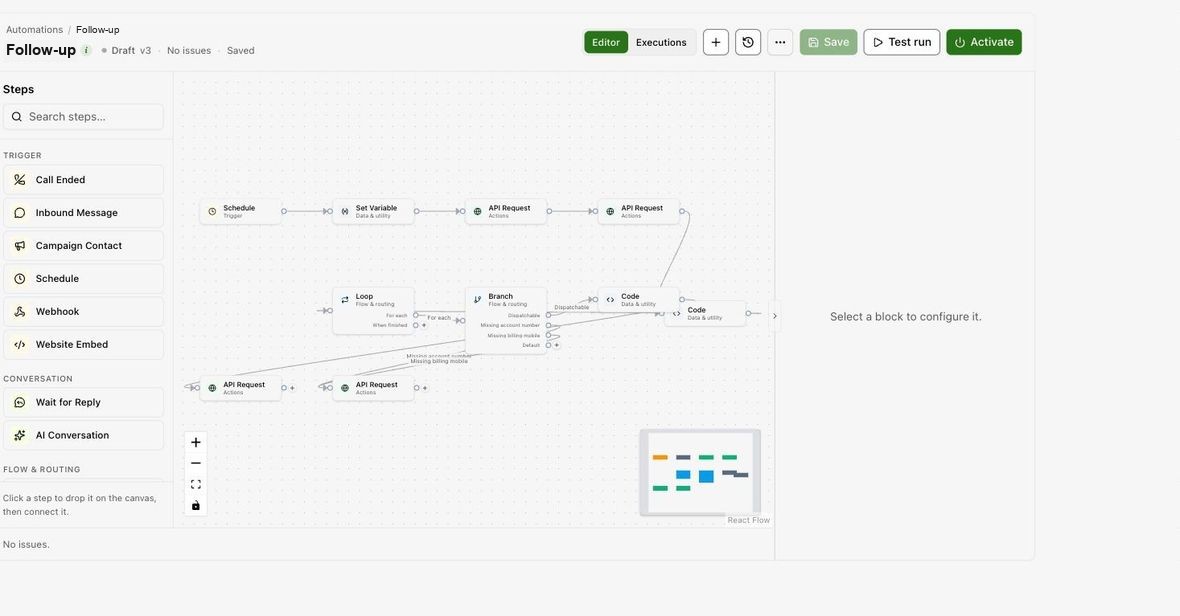
Monitor
Every call is recorded in Calls with its transcript and analysis. The dashboard summarises results by date and agent, and its metrics link to the calls behind them.
Use the dashboard to investigate performance
Trace a metric to the call records that explain it.
Read the guide : Use the dashboard to investigate performance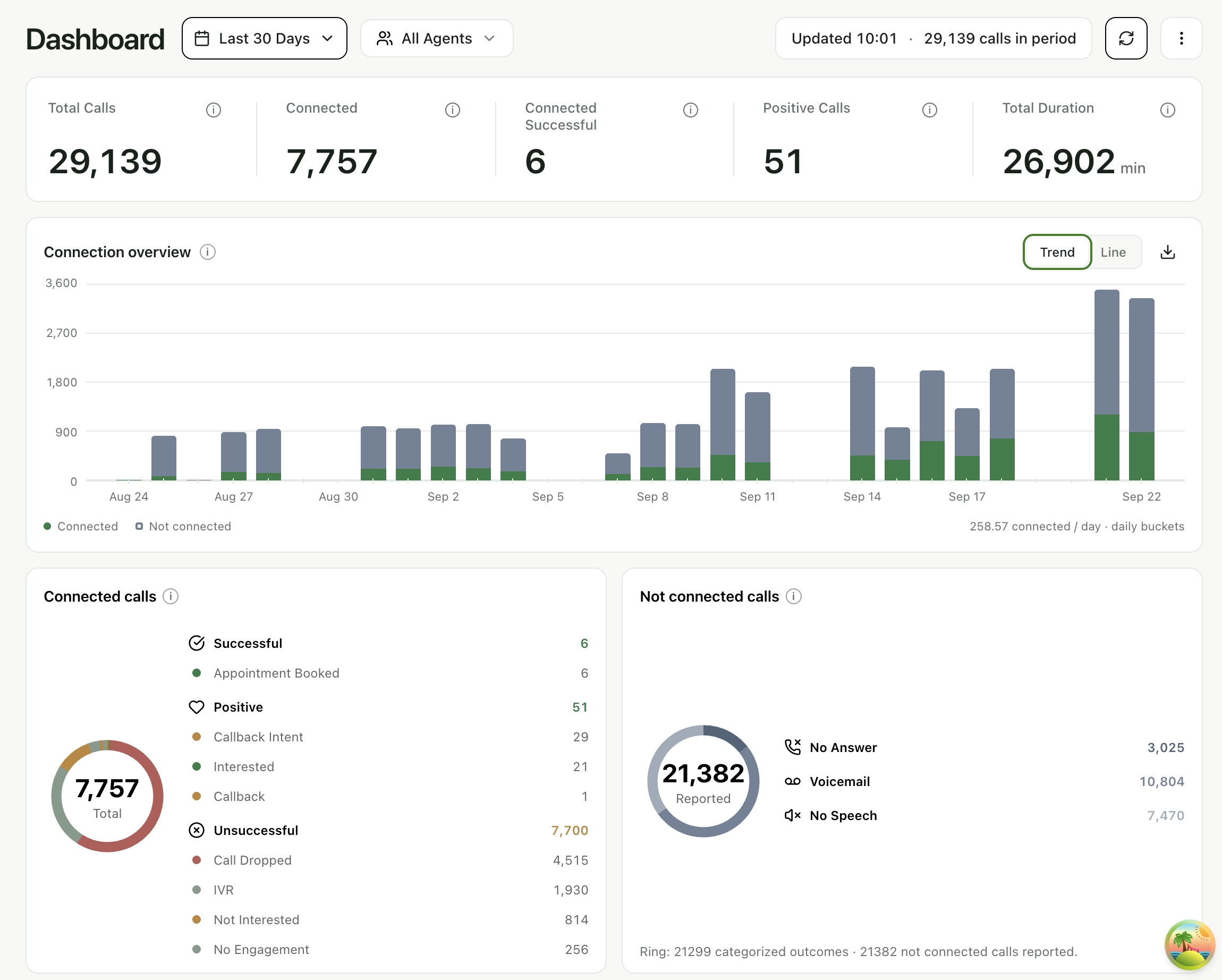
Find and export call records
Filter by date, agent, disposition and duration before exporting.
Read the guide : Find and export call records
Review a recording and transcript
Check what was said against the summary and extracted data.
Read the guide : Review a recording and transcript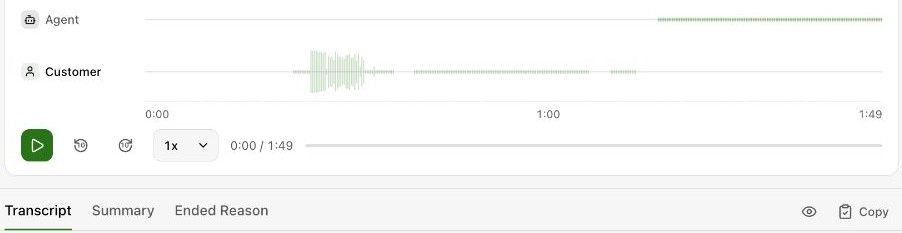
Request and review a disposition correction
Correct an outcome and keep a reviewed record of the change.
Read the guide : Request and review a disposition correction
Developer reference
The developer path is kept separate from the dashboard guides. Create a workspace API key under Configuration → General (Manage workspace preferences and API keys) and send it as a bearer token to the endpoints in the API reference. An agent can also push completed-call data to your own endpoint (Send completed call data to a webhook). To drive the same operations from an AI assistant instead of writing requests, connect the MCP server.