

1. Find a voice
Expand Resources in the workspace sidebar and open Voice Library. Search by name and narrow the catalogue with Language, Accent, Gender and Style. This example searches for Callum. Clear the search to browse again; use Show more voices when more results are available.
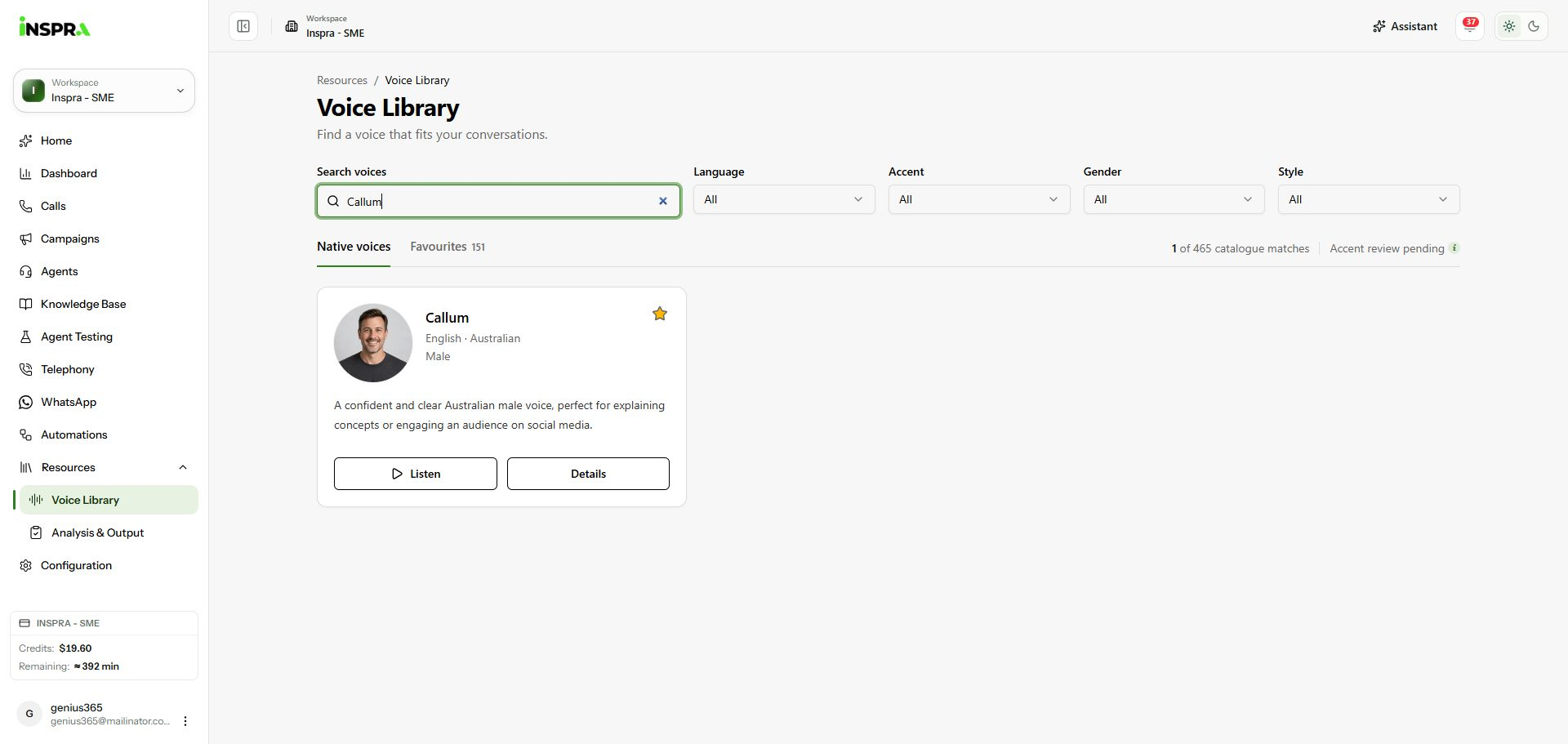
Voice Library filtered to Callum, with Resources and the sidebar expanded. 2. Listen and inspect the details
Click Listen on a card to hear its supplied sample, or Details to see its description, voice attributes and samples. In the dialog, use the sample's play control. Supplied recordings can differ from the production model. Where enabled, enter your own wording under Try your own text and click Generate preview to hear it.
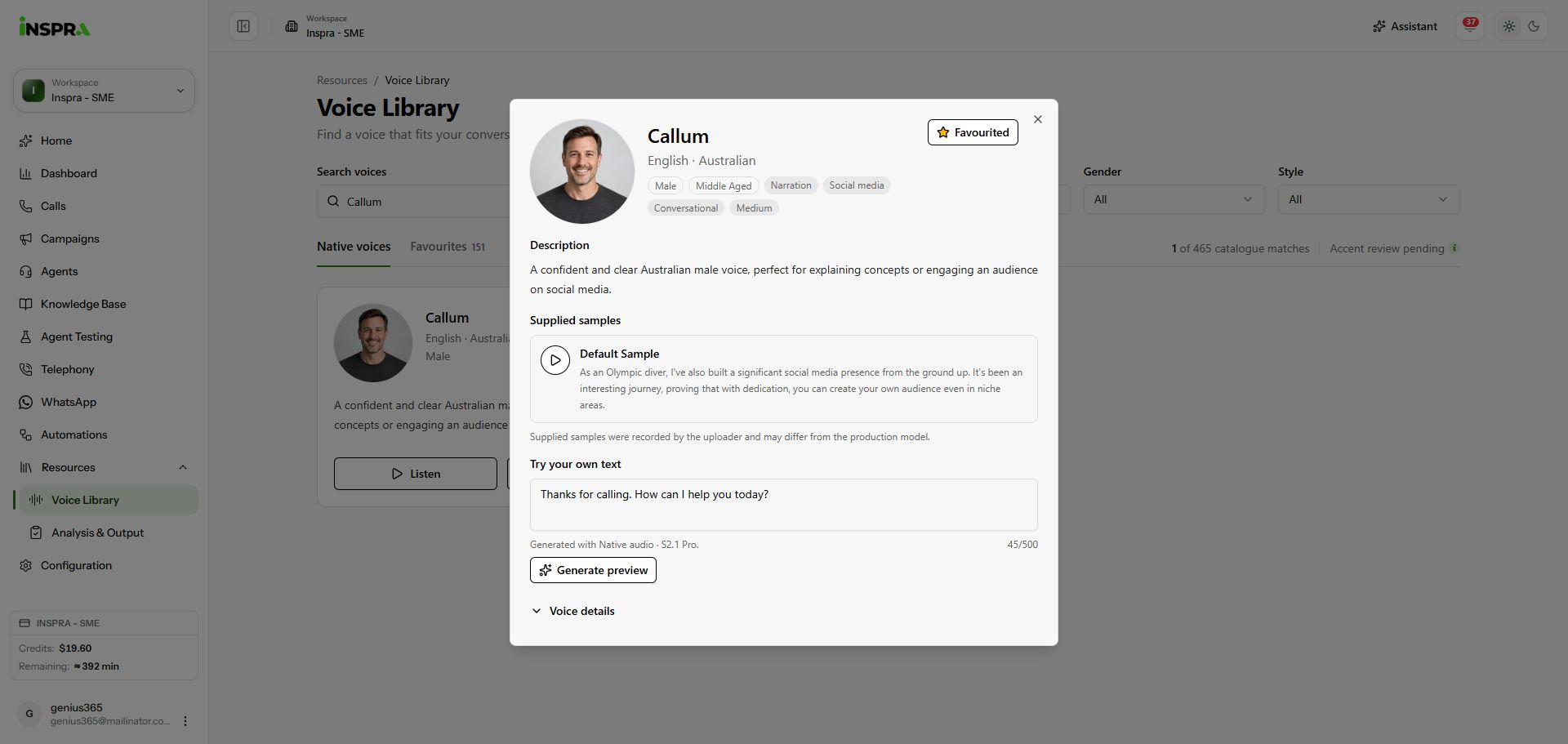
Callum details with supplied sample playback and custom-text preview controls. 3. Keep and revisit favourites
Click a voice's star to add or remove it from Favourites; this saves immediately. Open the Favourites tab to revisit your shortlist. Callum was already favourited in this screenshot. Browsing or favouriting does not change an agent's voice: choose it in the agent's voice settings and save the agent when ready.
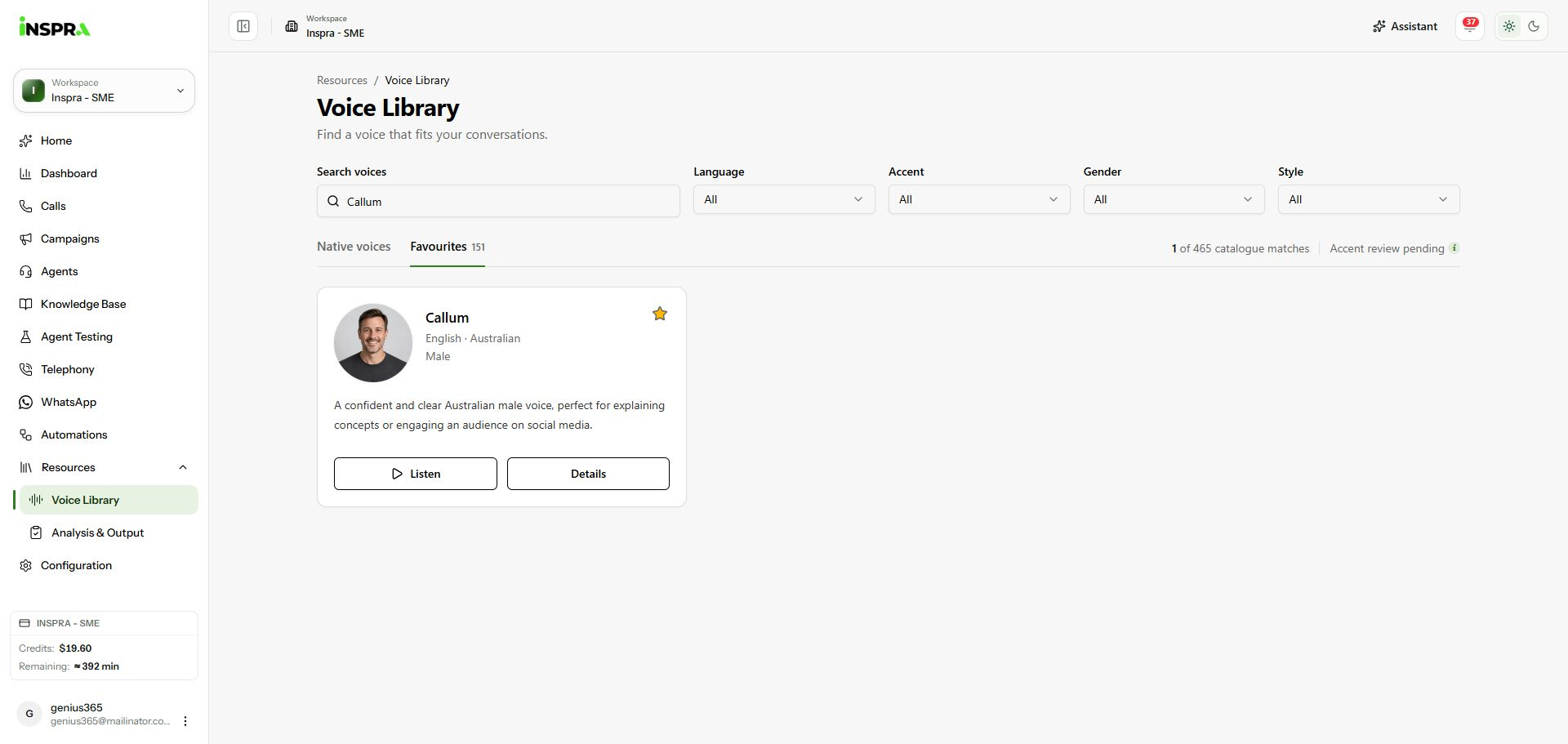
Favourites tab with the existing Callum favourite and search filter.
Voice Library
Find a voice, compare its samples and keep a shortlist.