

This example captures whether a caller requested a callback. The schema and Alex assignment below are unsaved; the form was cancelled after capture.
1. Open the creation form
Go to Resources → Analysis & Output → Structured Output and click Create.
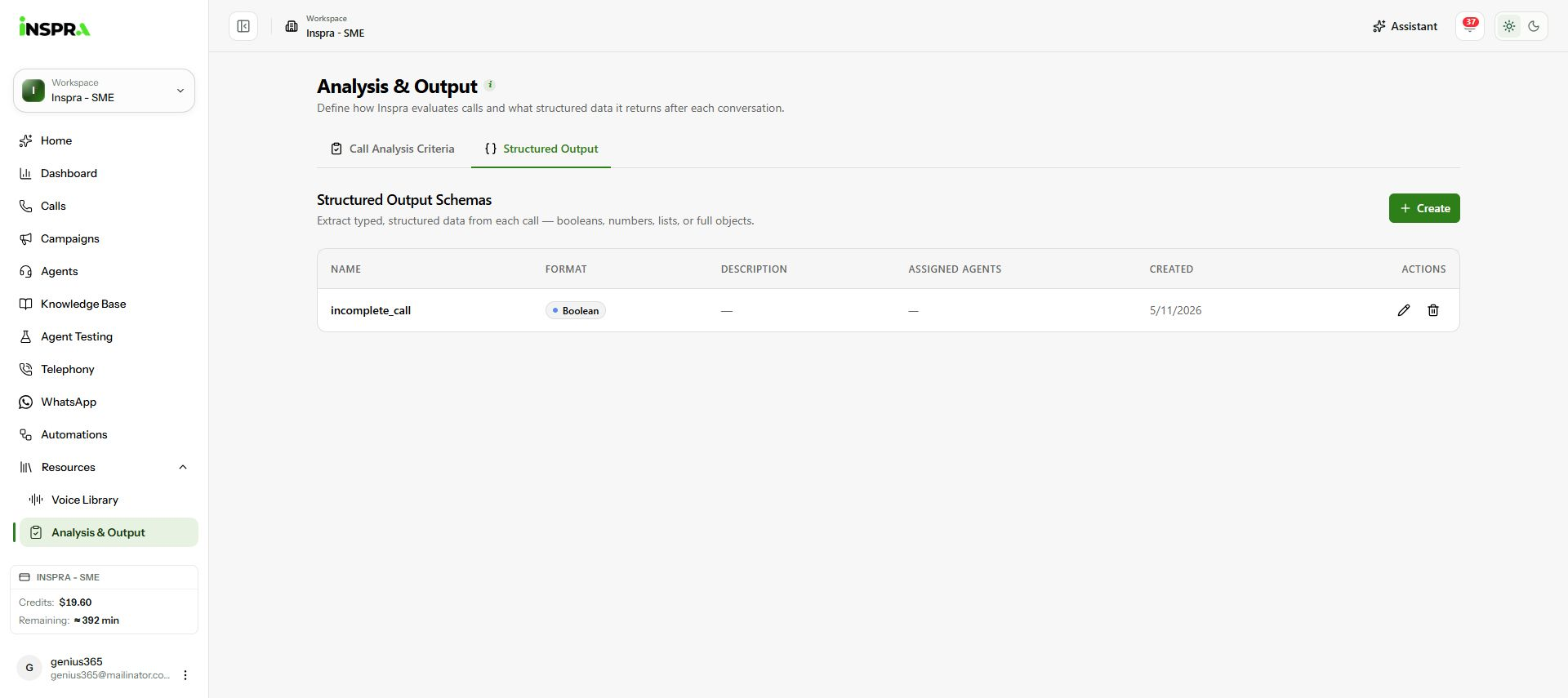
Open Structured Output and choose Create. 2. Enter the basic information
Under Basic Info, enter a descriptive Name and an optional Description for your team. This example uses
callback_requested.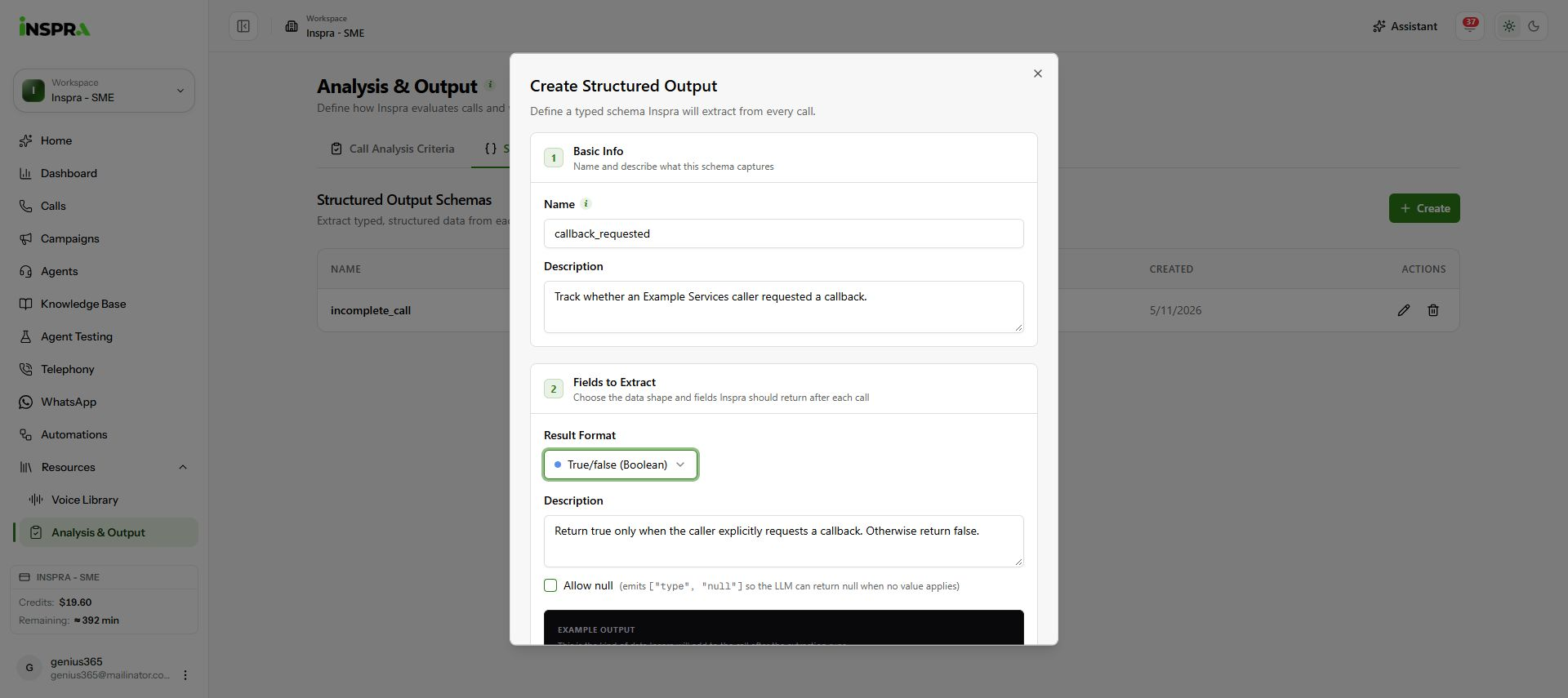
Basic Info and extraction instructions for the callback_requested example. 3. Choose and describe the result
Under Fields to Extract, choose Result Format: Boolean for true/false, String for text, Number for a numeric value, Integer for a whole number, Array for a list, or Object for multiple fields. Fill in the fields shown for that format. For this Boolean example, the Description says to return true only for an explicit callback request. Enable Allow null only when no value should be a valid result.
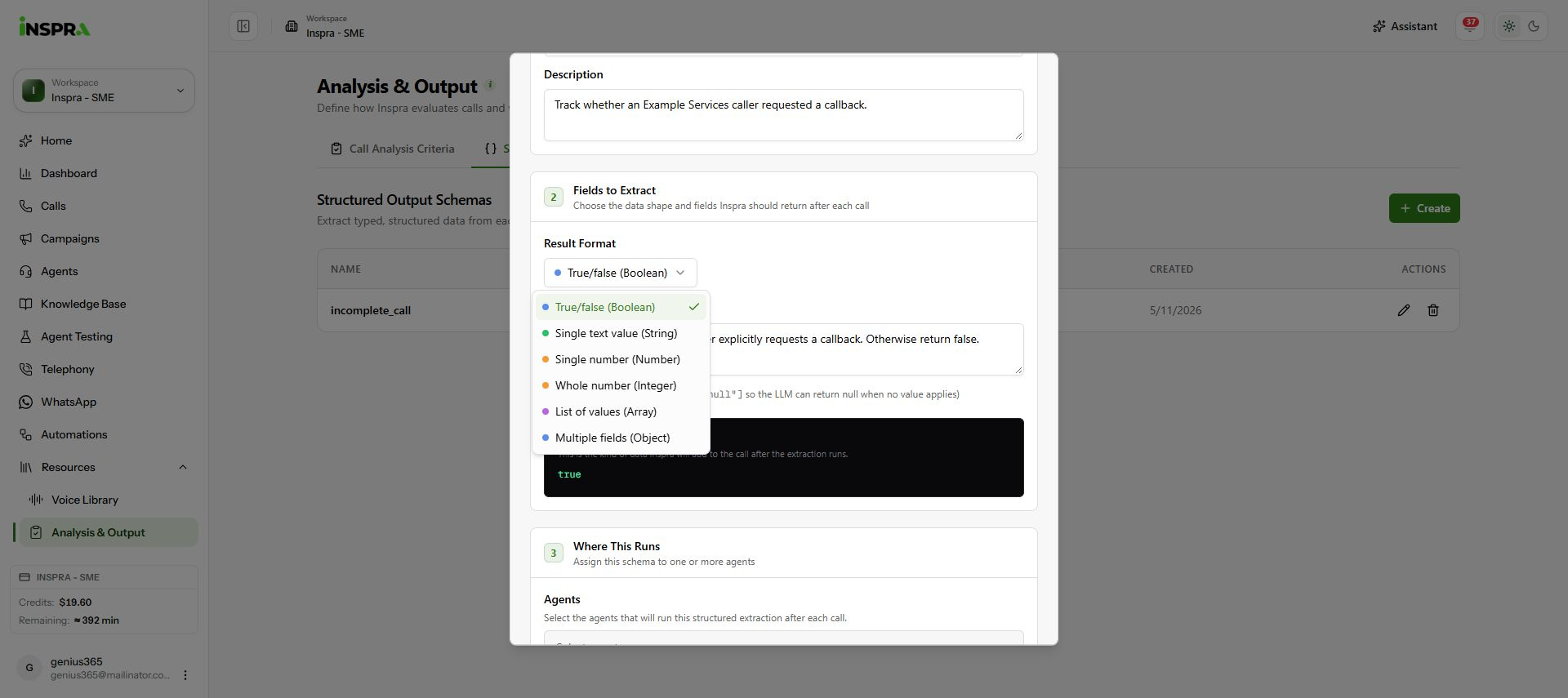
The six result formats available in the schema form. 4. Review, assign and create
Check Example Output to see the expected shape; it is a preview, not an extraction from a customer call. Under Where This Runs, select the intended Agents. Review the schema and assignments, then click Create. Confirm the schema and assigned agents in the list. Use the pencil later to edit and Save your changes.
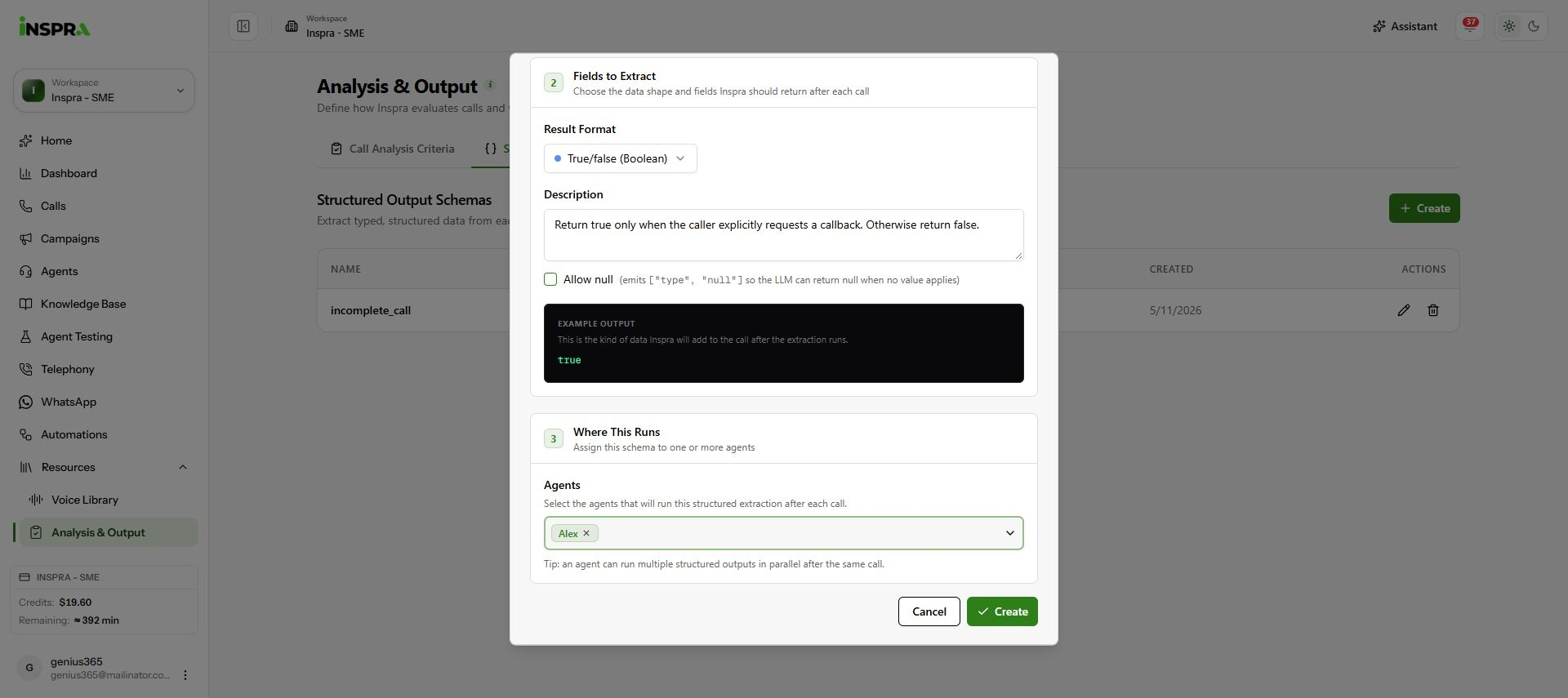
Boolean example preview, unsaved Alex assignment and Create action.