

Open SMS → Templates. This example uses Example Services and stops before saving the template.
1. Find a template or start a new one
Search by name or message text, and use the category chips to narrow the list. Click a saved template's Edit action to update it. To create one, click New template. The screenshot uses a no-match search.
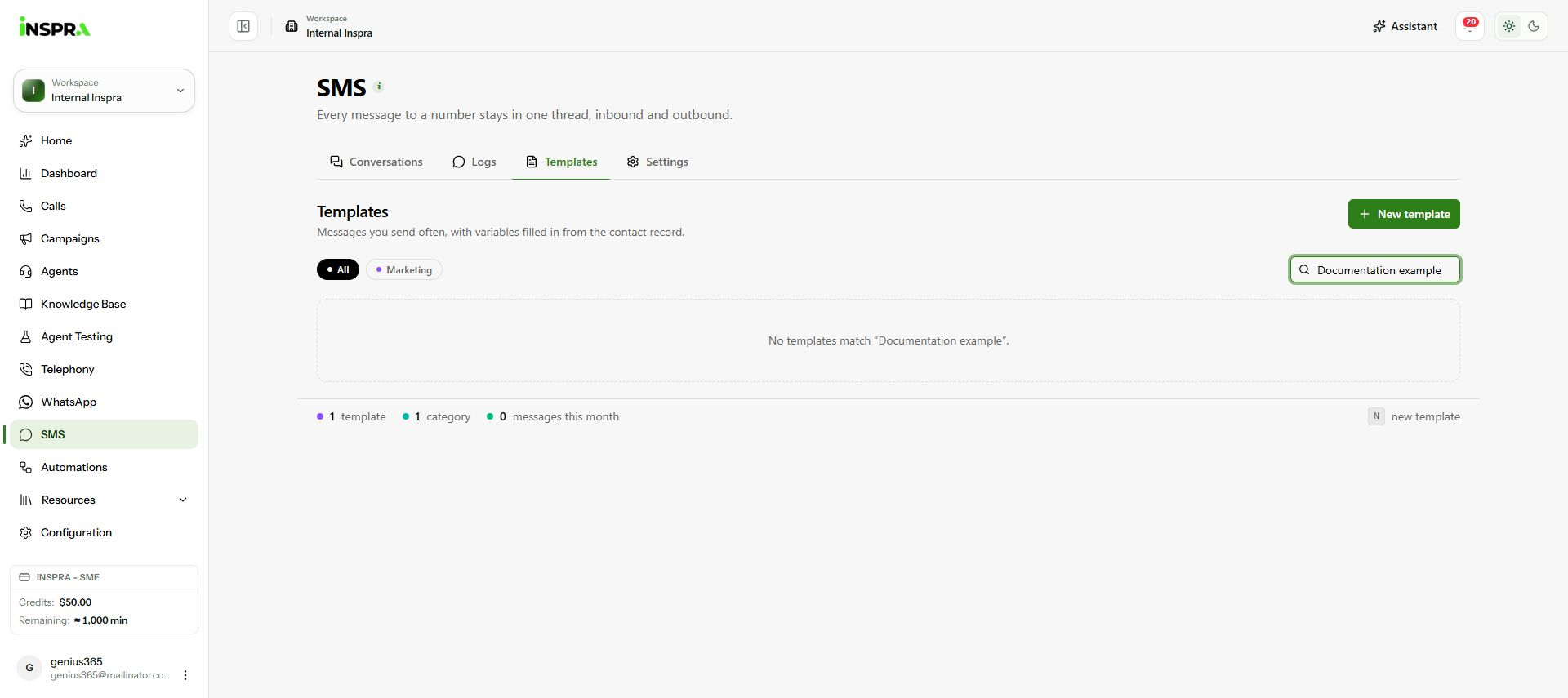
Template search, category filters and New template. 2. Enter the name, category and body
In New SMS template, enter a descriptive Name, a Category and the reusable message in Body. Click a variable chip, such as {{first_name}}, to insert a contact value at the cursor.
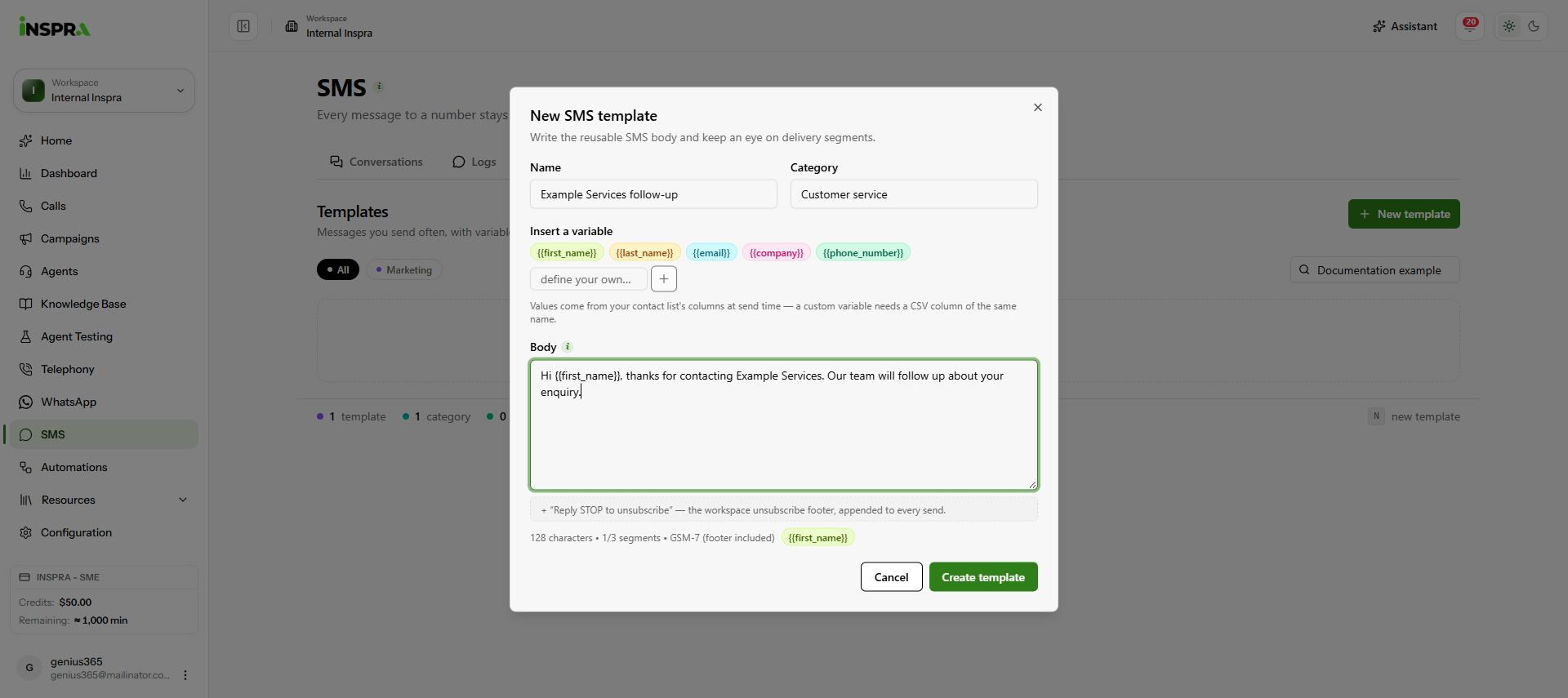
An unsaved Example Services message with a first-name variable. 3. Review variables and save
Each variable must match a column in your contact list. To define a custom variable, enter its name beside the chips and click the + control. Defining a variable saves it to the workspace immediately, even if you later cancel the template.
Review the character count, encoding and segment count, including the workspace unsubscribe footer. Click Create template when ready; when editing, save the updated template. Recheck the saved template in the list.
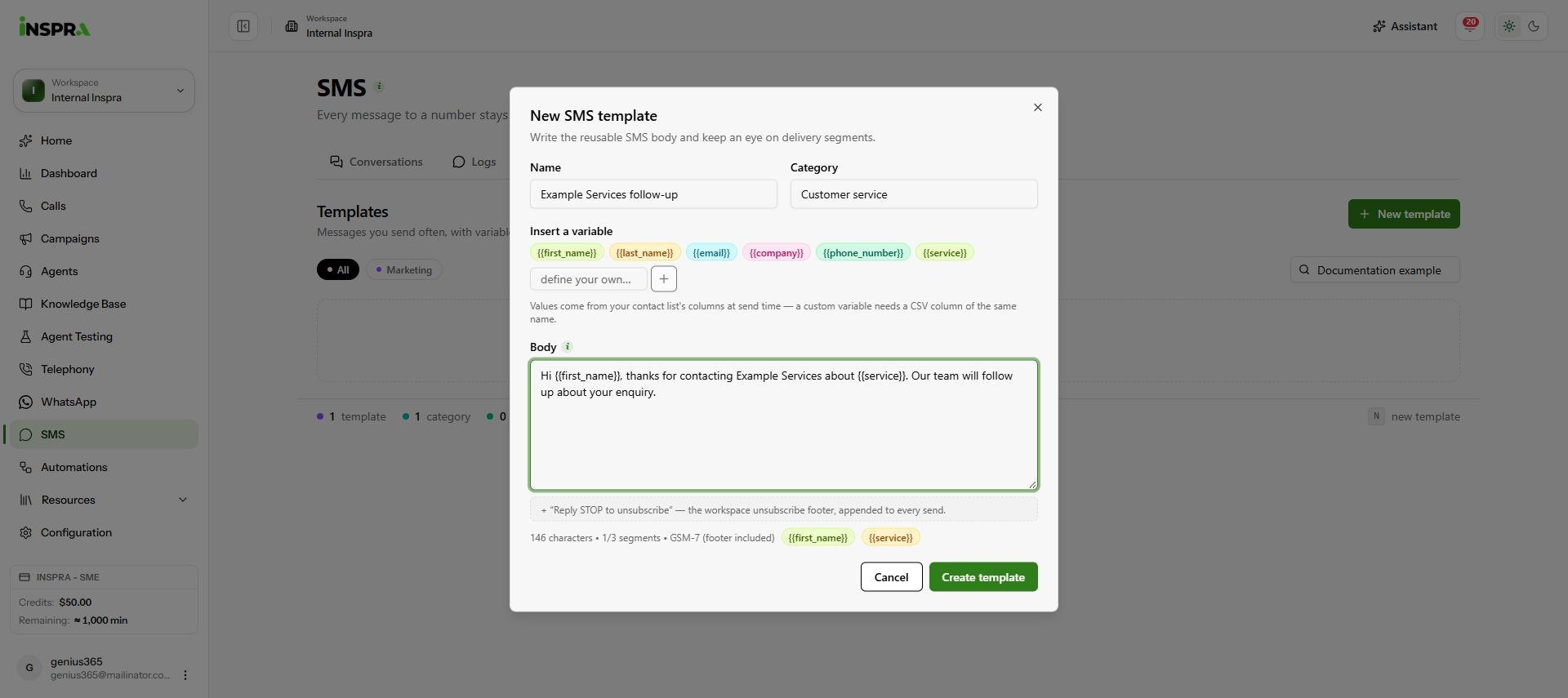
First-name and custom service variables, footer-inclusive segment count and Create template.