

The screenshots use the inactive documentation draft. No run was started. Customer execution payloads and results remain reserved for a separate data review.
1. Review the test-run dialog
Open a saved automation with no validation errors and click Test run. Review the Starting data under Sample data. The screenshot shows the app's built-in sample, not a customer call. Where available, Replay a real call uses an existing call's data instead.
Run for real performs the configured actions, including requests and messages; it is not a dry run. Check your actual endpoints, recipients and inputs before confirming. Choose Cancel to close without running, as in this walkthrough.
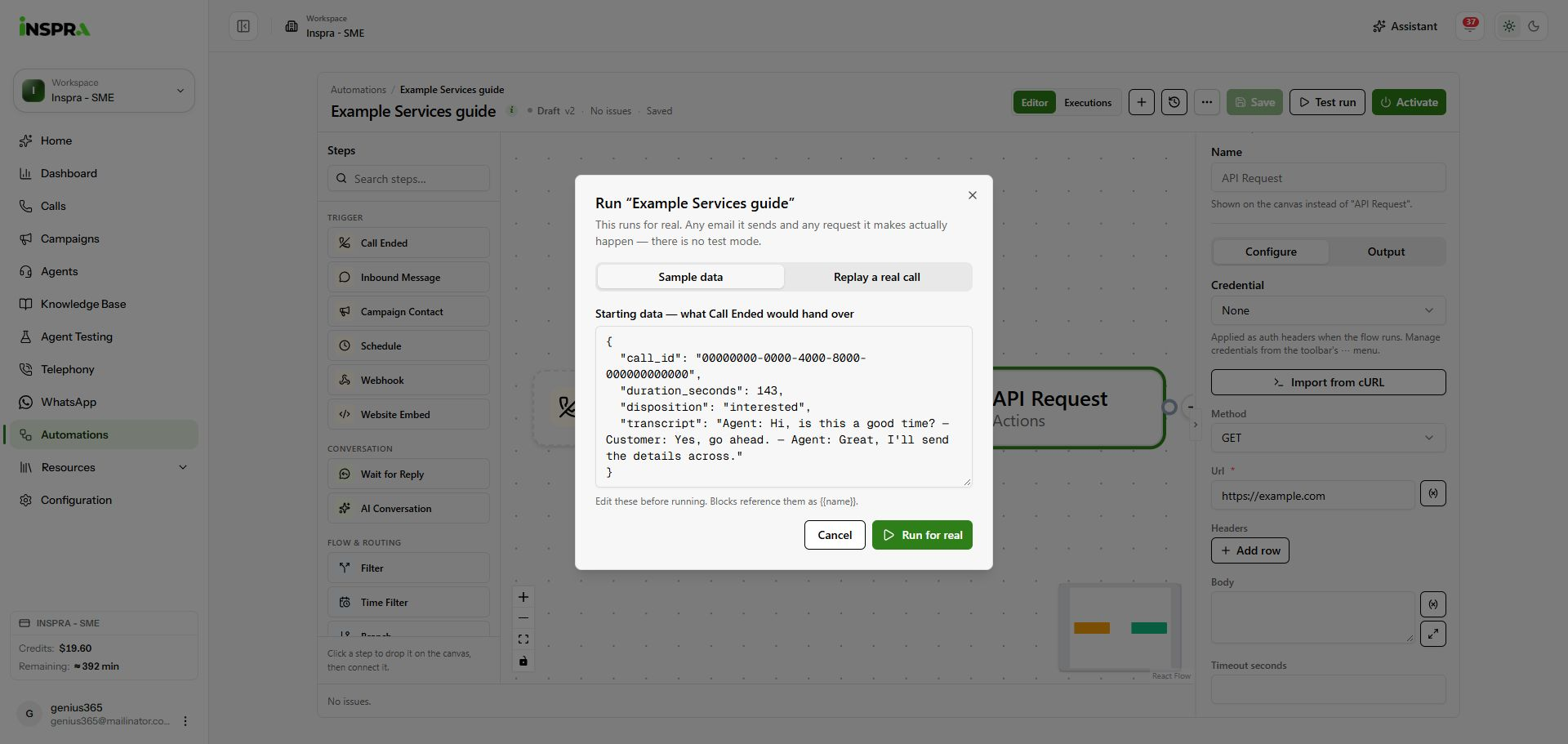
Test-run confirmation with built-in sample data, Cancel and Run for real. 2. Open execution history
Click Executions in the toolbar. After a run, its entry shows when it started, its outcome, duration and version. Select an execution, then a block, to inspect its results. The example below correctly shows No runs yet. Return to Editor to change the flow.
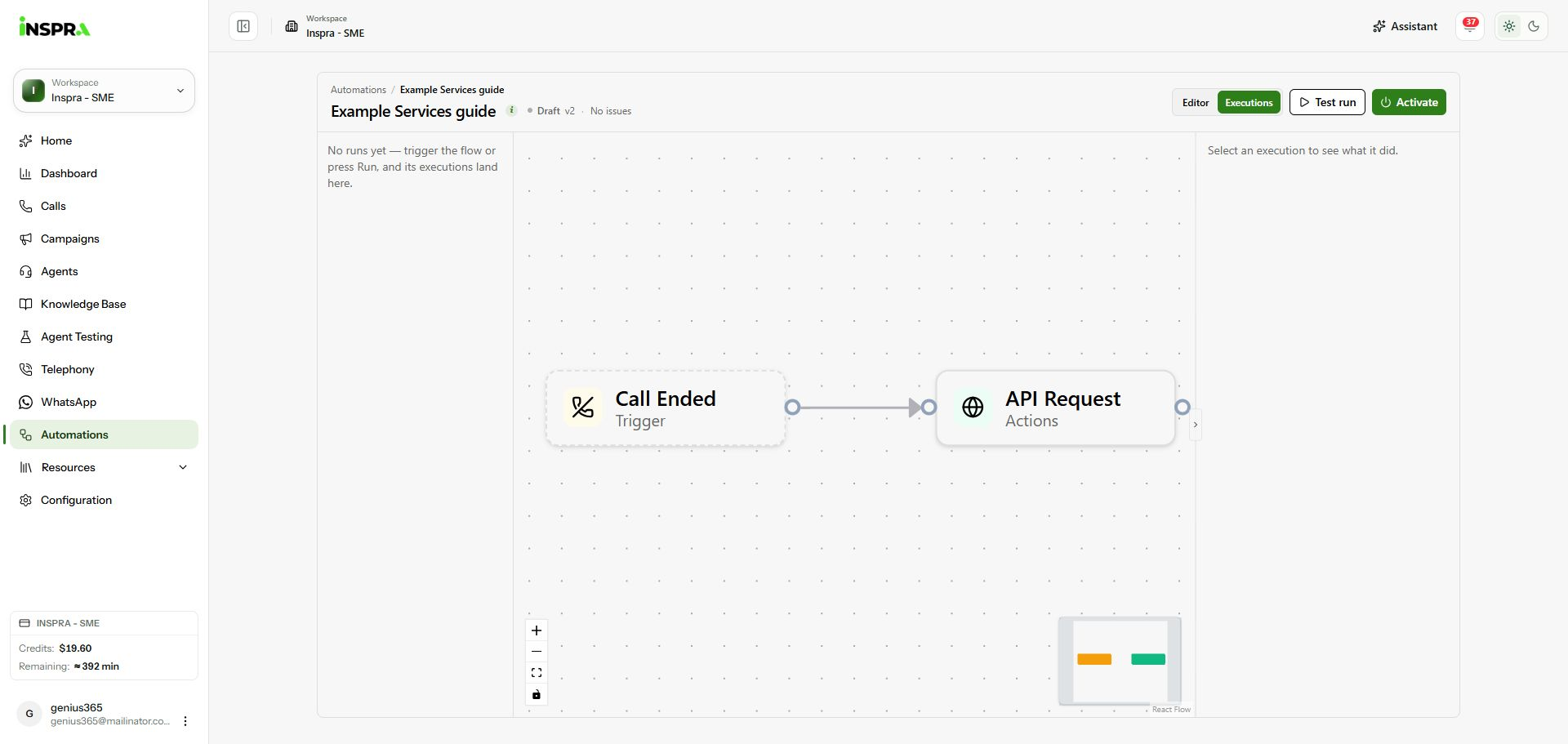
Empty execution history for the inactive documentation draft.
Activate is a separate control for automatic triggering; use it only after configuring and checking the intended trigger and actions. Deactivate stops automatic triggering. This walkthrough leaves the flow inactive.