

You need a workspace with permission to create agents and an available agent slot. This walkthrough uses Alex at Example Services. Use your own approved business details.
1. Start Inspra Copilot
Open Home and click Build an agent. You can also start from Agents → Build with Inspra Copilot. Inspra Copilot creates Inspra Agents.
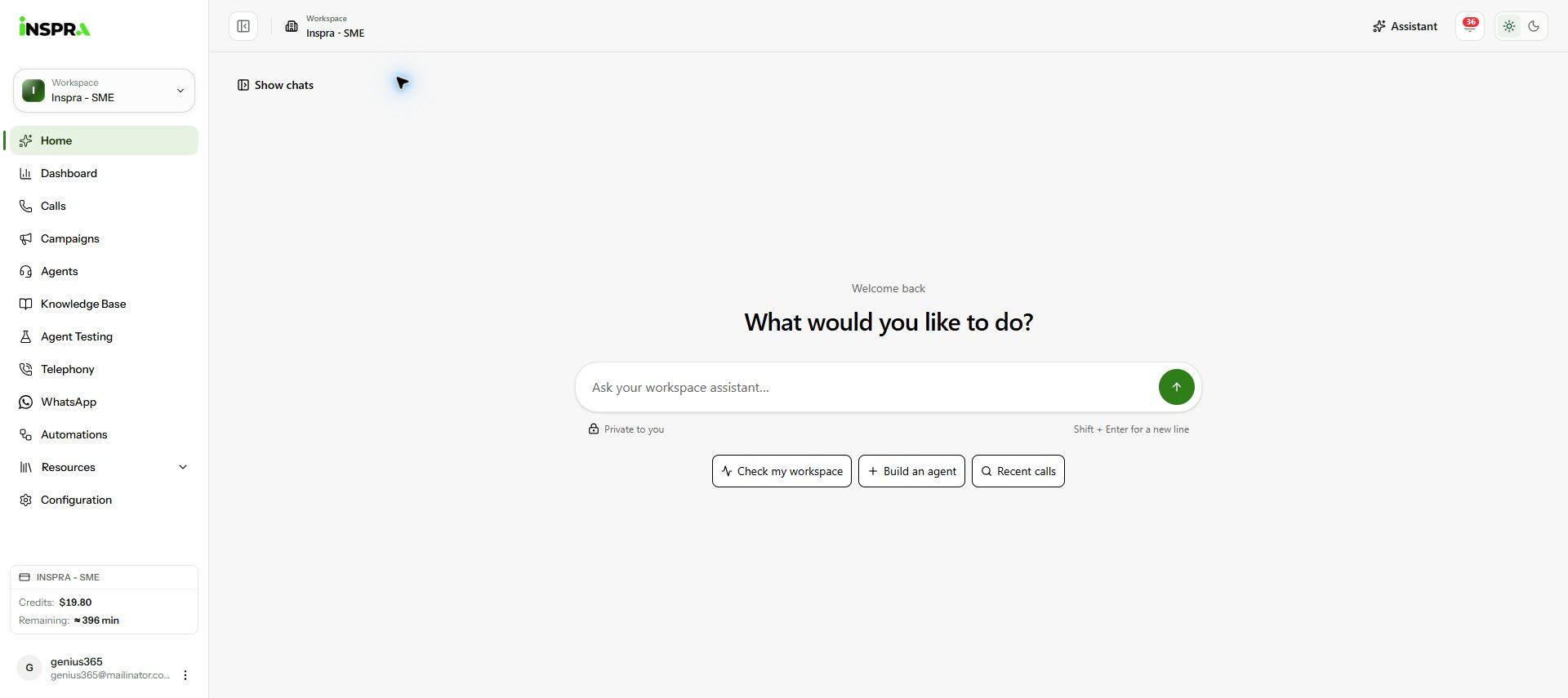
Click Build an agent on Home to start Inspra Copilot. 2. Set the identity and direction
Enter the Agent name and company name. Choose Inbound if people will call your business, or Outbound if the agent will make calls. This example uses Alex, Example Services and Inbound.
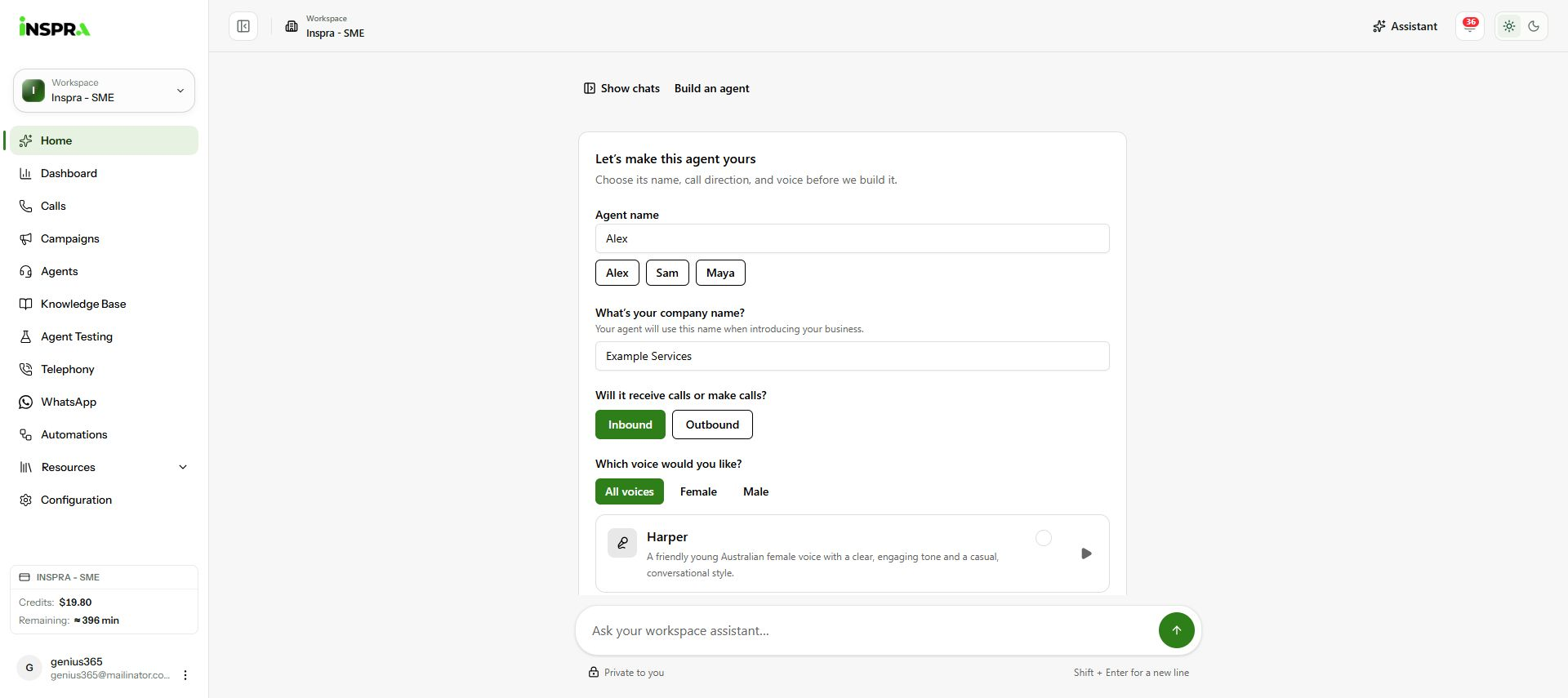
Agent name, company name and Inbound direction filled in. 3. Choose a voice
Under Which voice would you like?, browse or filter the voices and select one. This example uses Callum. Click Continue to business questions.
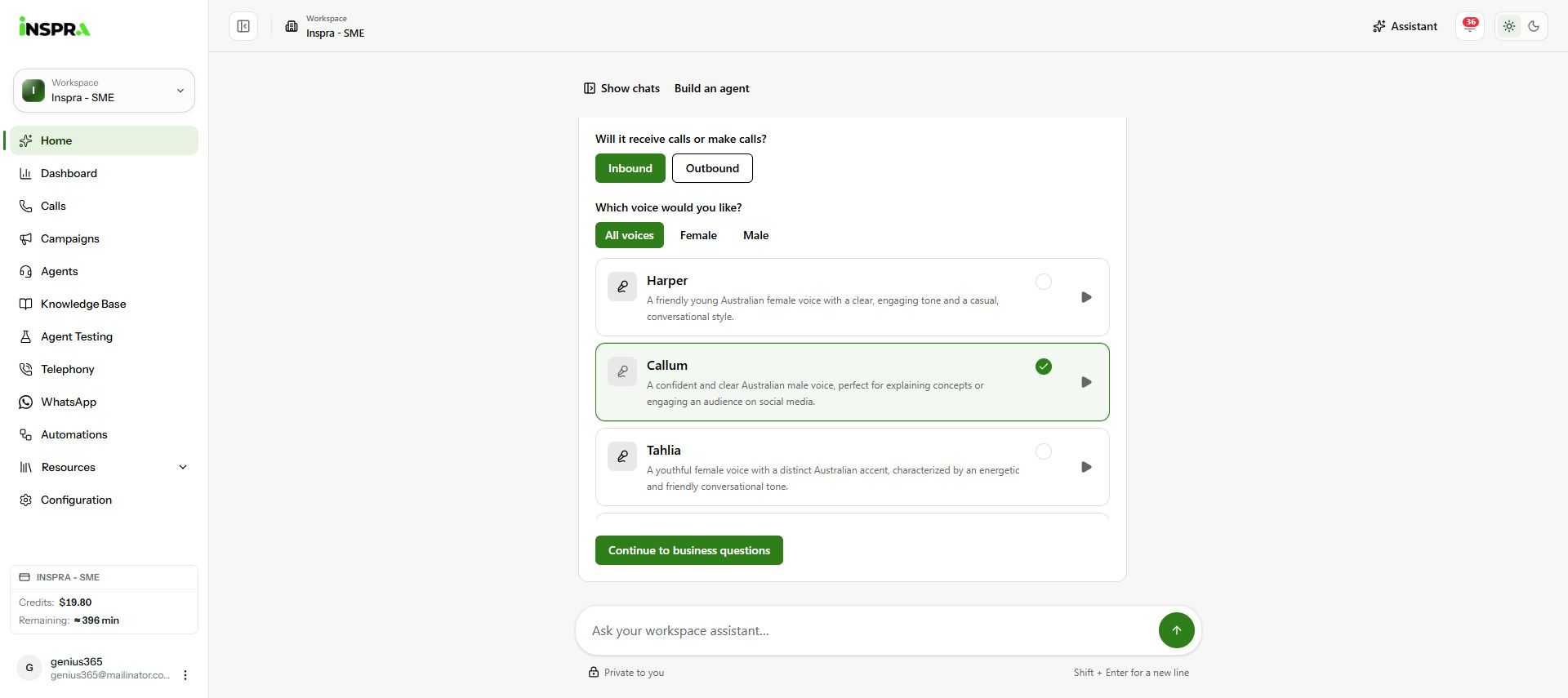
Callum selected; continue to the business questions. 4. Describe your business
Answer What does your business do? Choose a suggestion or type into Or use your own answer, then click Next. Describe the services the agent should know about.
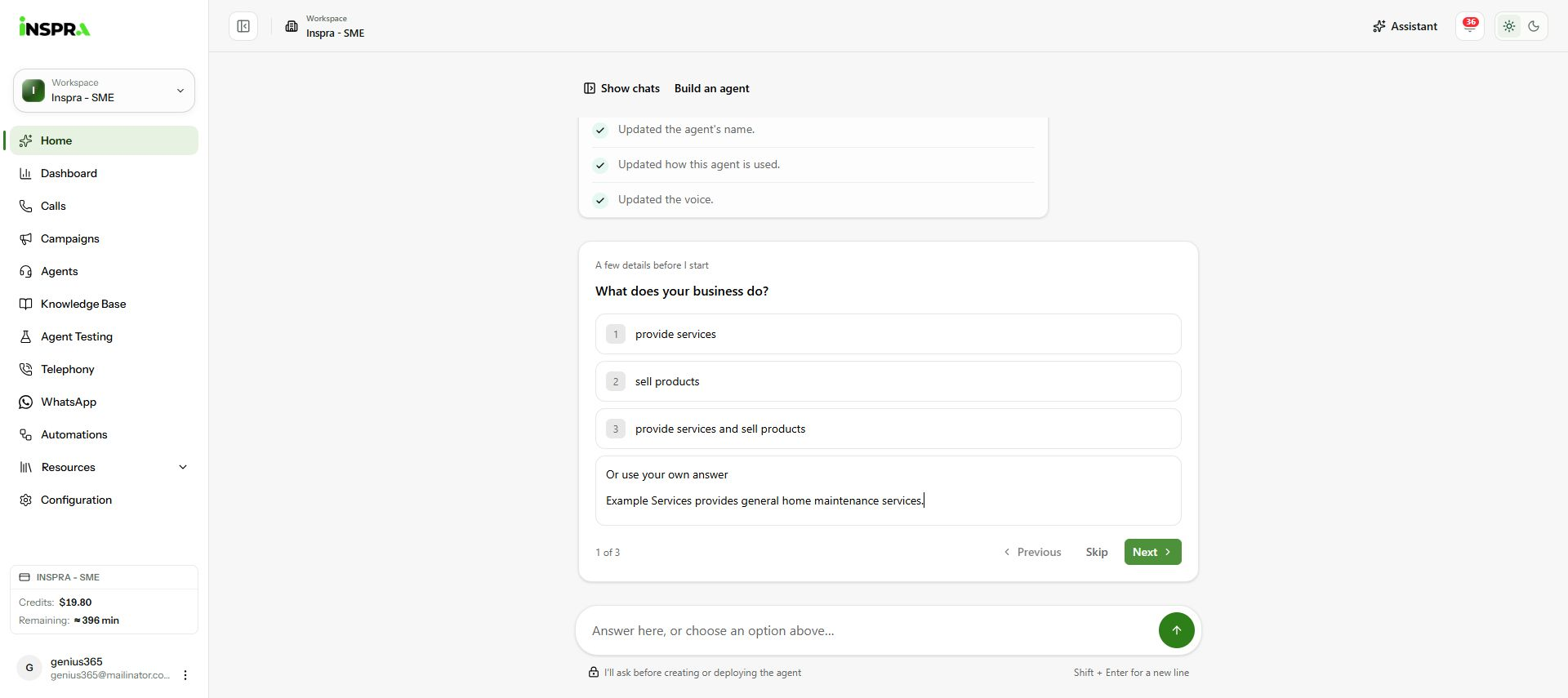
Describe what the business does, then click Next. 5. Describe the callers
Answer Who will be calling your business?, then click Next. For this inbound example, the callers are homeowners asking about maintenance or requesting a callback. Use Previous if you need to correct an earlier answer.
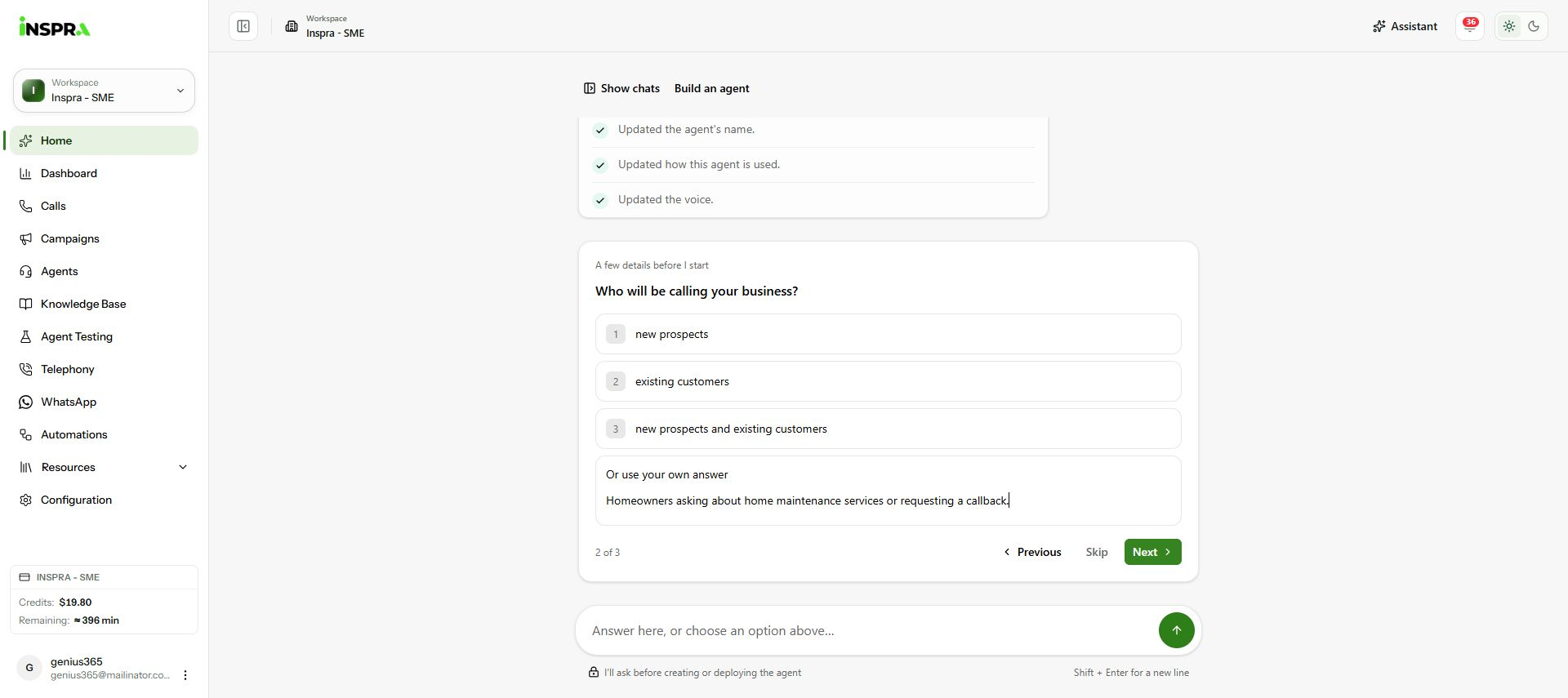
Identify the intended callers, then click Next. 6. Set the call goal
Answer What should a successful call achieve? Give the agent a clear outcome and important limits. This example answers service questions and collects callback details without promising prices or appointments. Click Continue.
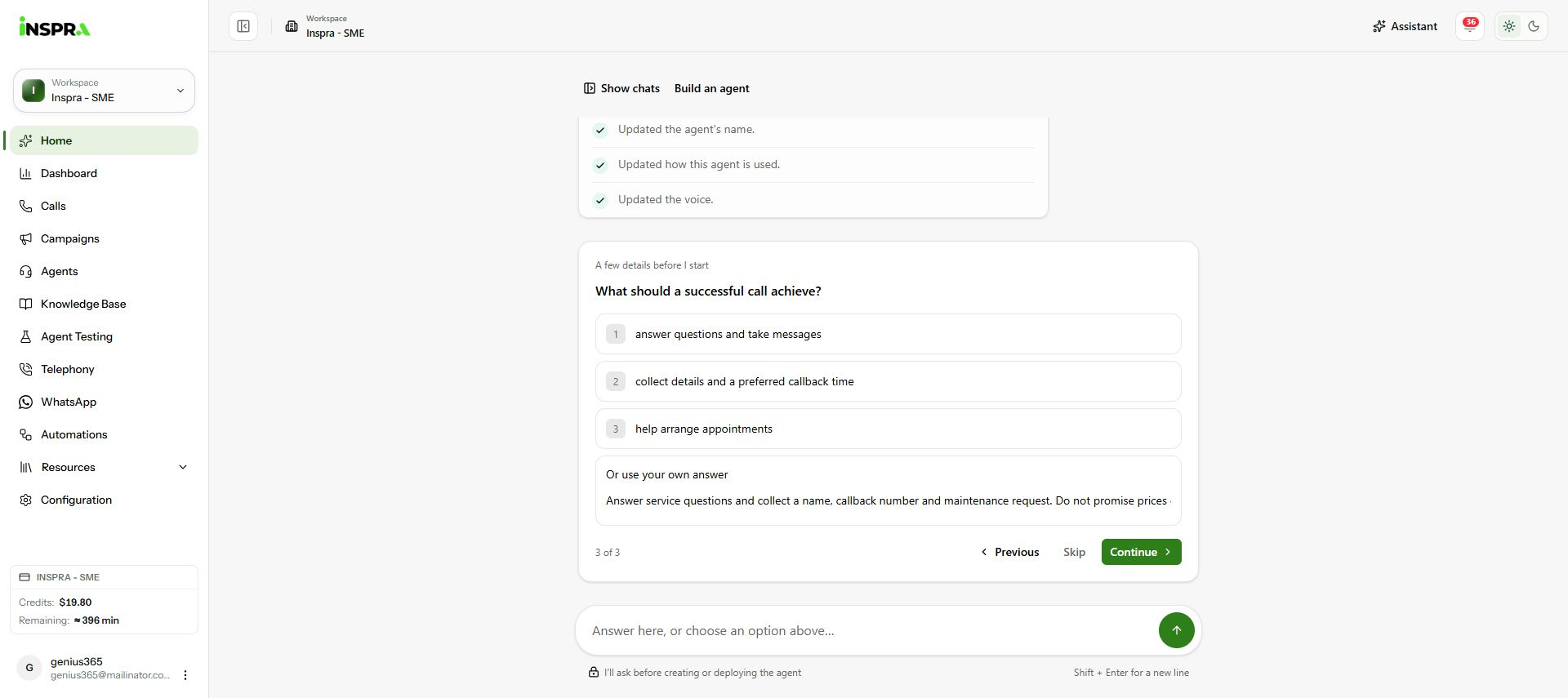
Set the successful-call outcome, then click Continue. 7. Confirm and build
Review Details confirmed and use Change to correct an answer. Add your greeting or boundaries in Additional instructions (optional). Click Build my agent and wait for creation to finish.
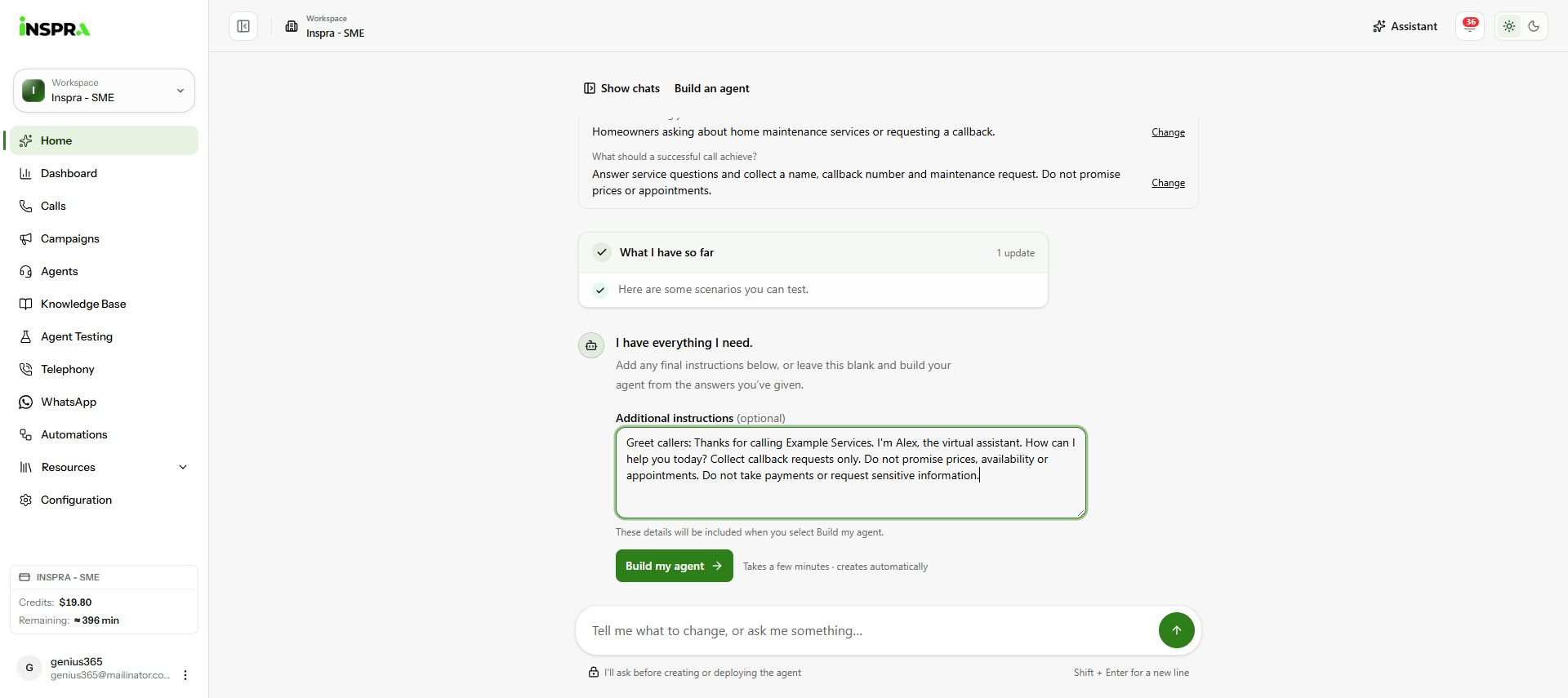
Add final instructions and click Build my agent. 8. Open the created agent
When We've built your agent. appears, creation is complete. Click Open agent to see the saved agent. Inspra Copilot may also show the status of automatic checks; these are separate from the creation result.
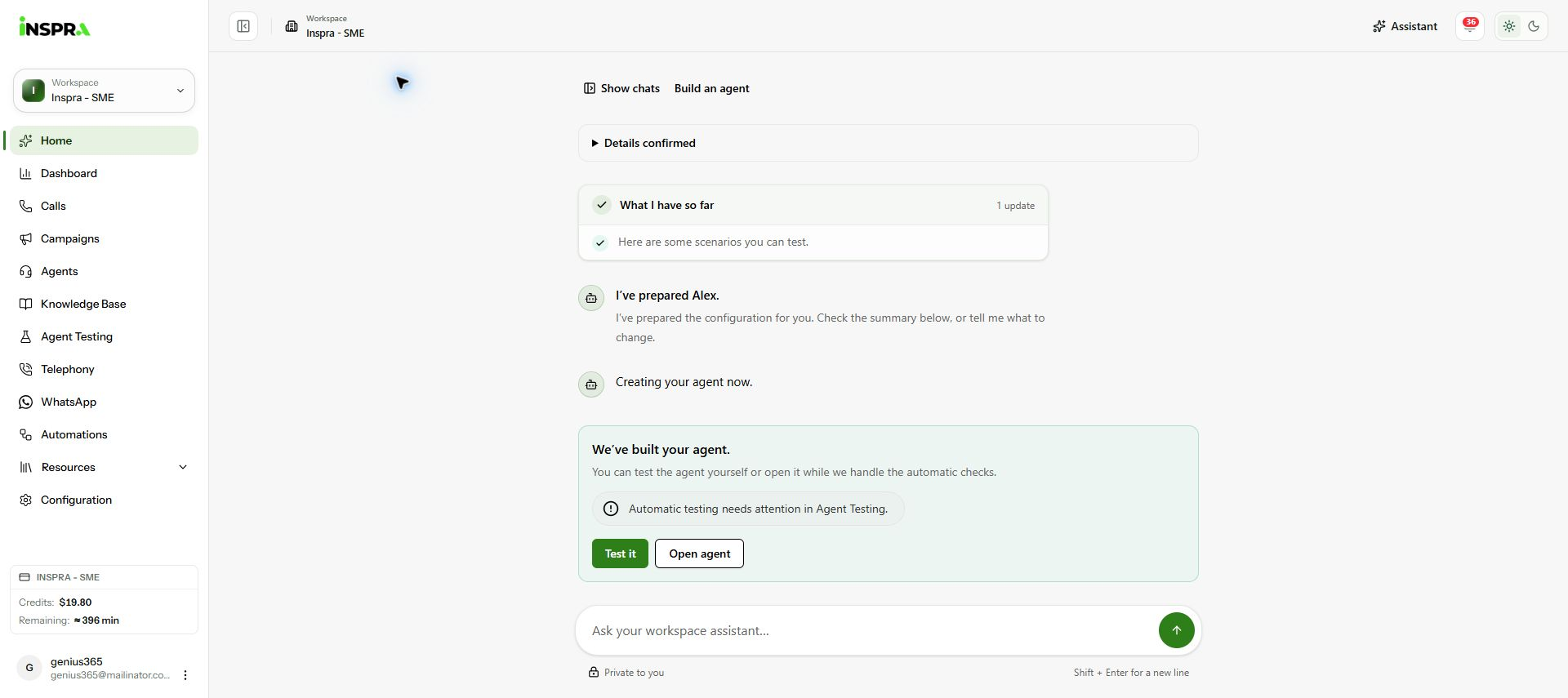
The created-agent result with Open agent and Test it controls.