

1. Update the workspace profile
Open Configuration → General. Edit the Workspace Name and Description, then click Save changes. The Workspace ID is read-only; use its copy control when an integration needs it.
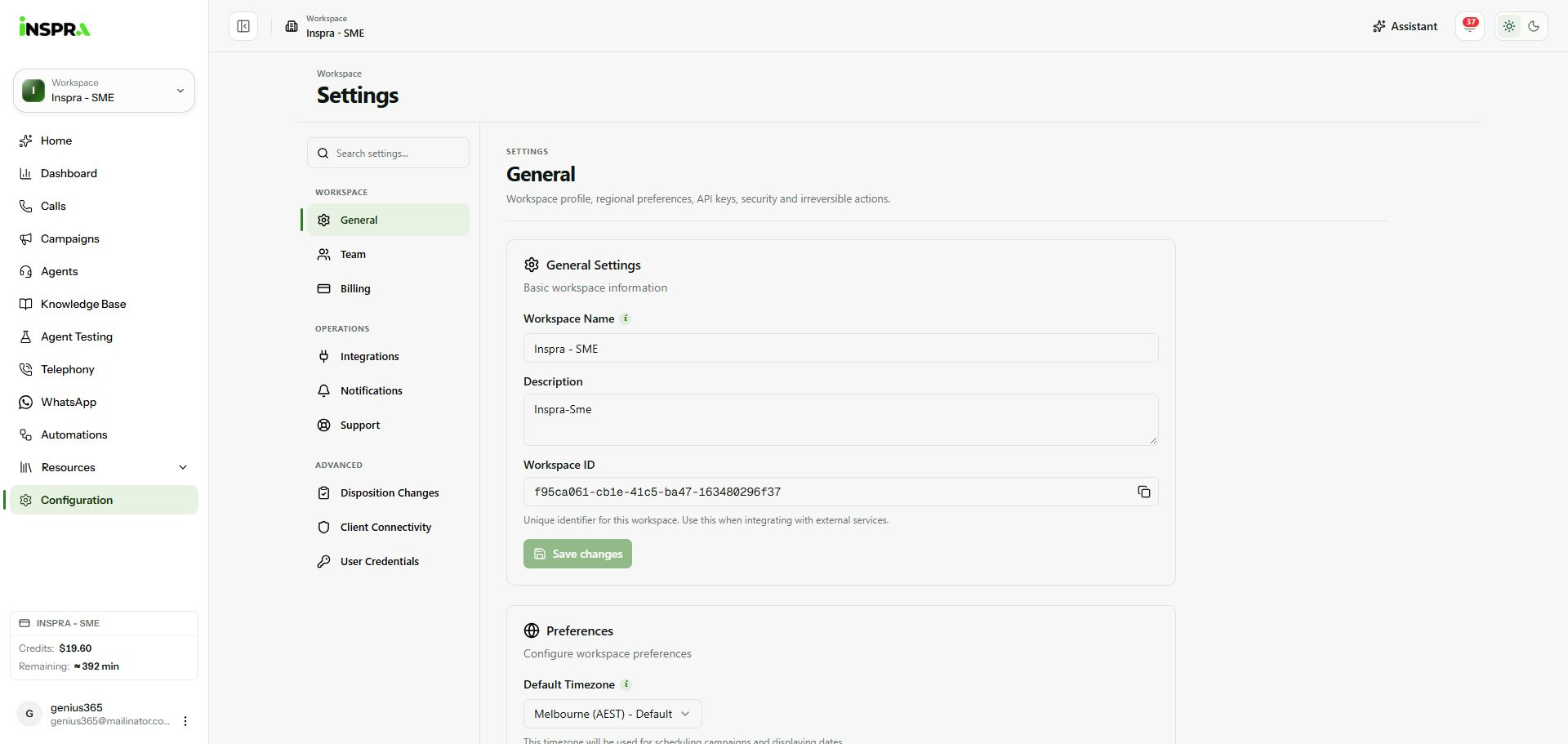
General settings with workspace profile fields and Save changes. 2. Set the default timezone
Scroll to Preferences, open Default Timezone and choose the workspace's timezone. Click the Save Changes button in this section. Check the timezone when reviewing schedules and reports.
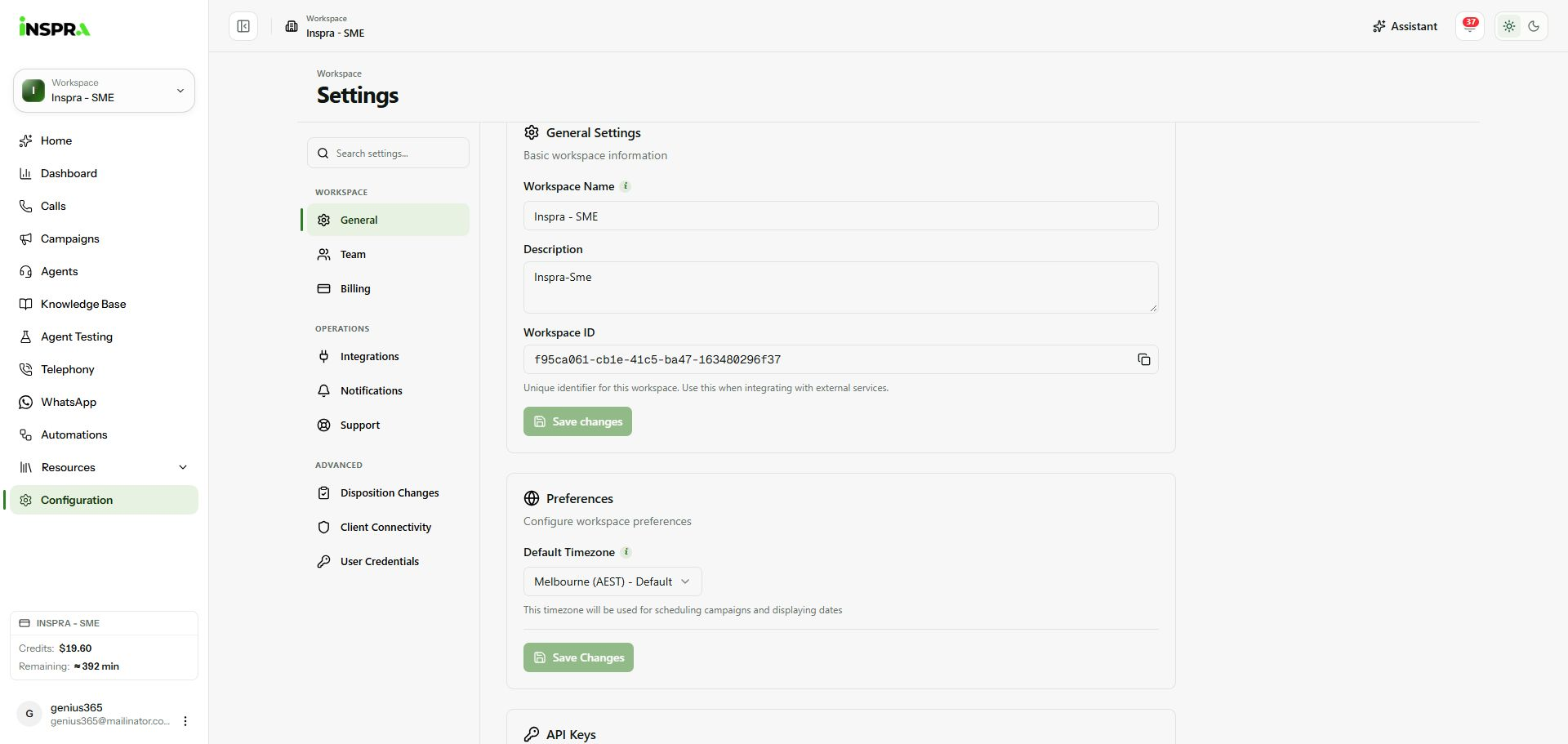
Preferences with Default Timezone and its Save Changes button; no selection was changed. 3. Create an API key when needed
In API Keys, click Create API Key, enter a descriptive Key name and create it. Copy the full key when it is shown and store it securely; it is displayed only once. Key creation requires Edit Settings and API & MCP access on the plan. Revoke a key when its integration should lose access.
The key list and created-key screenshot are reserved for the final private-data review.
Other General controls
Account Security: enter your current password, new password and confirmation, then click Change Password. Call history retention: review the plan's retention setting before changing how long call history is kept. Danger Zone: deleting a workspace is a destructive action; check the confirmation carefully.