

Choose the right level of access
Organization roles control access to agency administration. Workspace membership controls which client workspaces a person can open. Permissions inside each workspace control the actions that person can perform.
| Organization role | Use it for |
|---|---|
| Owner | Full organization administration, including owner-only controls such as workspace creation and assigning other owners. |
| Admin | Staff who manage the organization team and workspaces. Admins cannot assign or modify organization owners. |
| Member | People who work inside their assigned client workspaces without organization administration access. |
A workspace owner role does not grant an organization owner role. Choose an organization role and workspace access separately.
Explore the member list and actions
Open Organization > Overview > Members. Search by name or email. Each row shows the member, organization role, tags, workspace assignments, and join date. The crown beside a name marks a workspace owner. Workspace badges show the first assignments, with a count for additional workspaces.
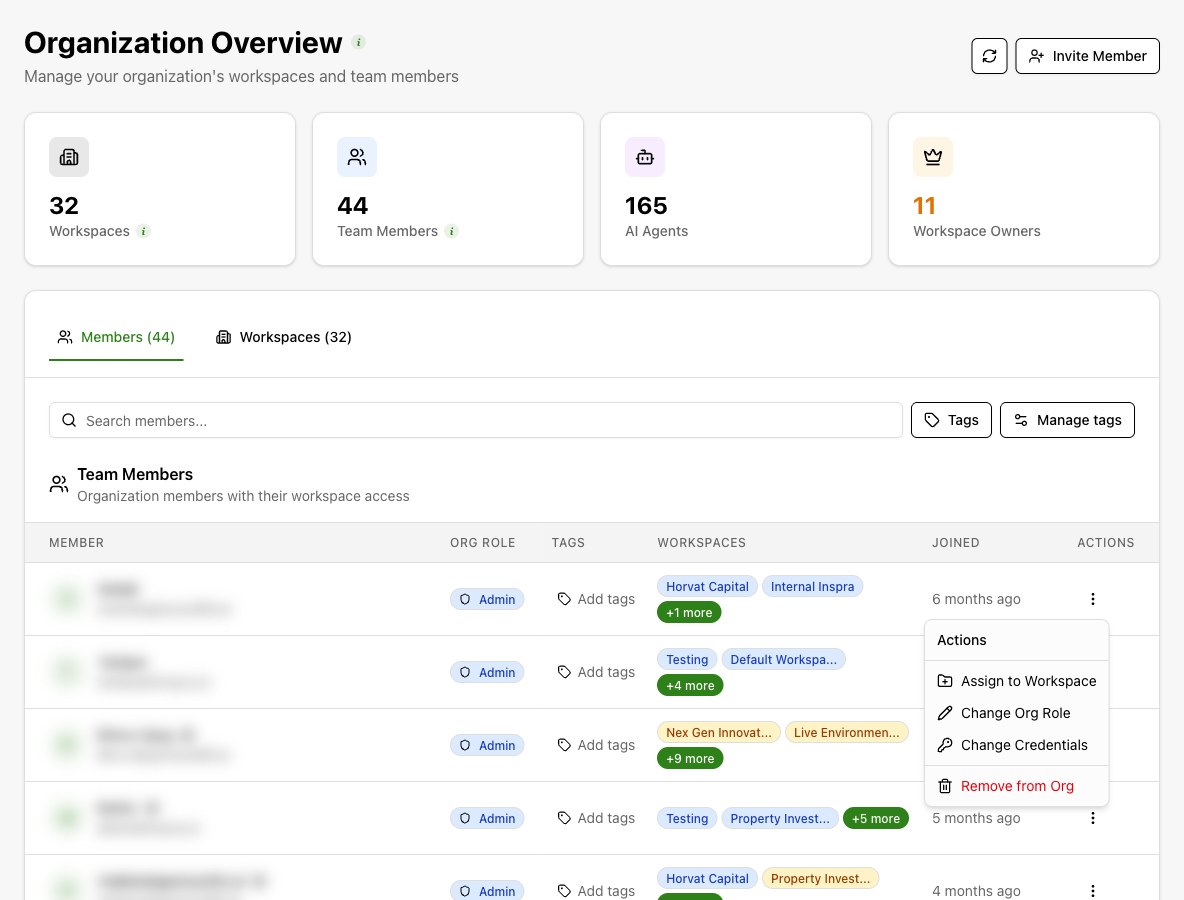
| Control | Use it to |
|---|---|
| Assign to Workspace | Add an existing organization member to another client workspace. |
| Change Org Role | Change their agency administration role. |
| Change Credentials | Set a new login email, password, or both for another member. |
| Remove from Org | Remove the person's organization membership and workspace access. |
| Add tags or existing tag badges | Classify the person using organization tags. |
| Tags filter | Show members with any of the selected tags. Clear filter restores the full list. |
| Manage tags | Create, rename, recolor, or delete shared organization tags. |
The actions menu is unavailable for your own row. Admins cannot use it to modify organization owners. Use your account settings for your own login details.
Invite a new team member
Open Team Invitations
As an organization owner or admin, open Organization > Team Invitations. Find the Send Invitation form.
Enter the recipient and organization role
Enter the person's email address and choose Organization Role. Only an organization owner can invite another owner. Add a personal message if needed.
Assign client workspaces
Select Assign to Workspaces. Choose the workspaces the person needs and select Admin, Member, or Viewer for each assignment. Review the selected workspace badges.
Send the invitation
Submit the form. Share the invitation link from the success screen if the recipient needs it. The link expires in seven days and must be accepted using the invited email address.
Check the accepted membership
After acceptance, open Overview > Members to check the person's organization role and workspace access. Review permissions within each workspace before handover.
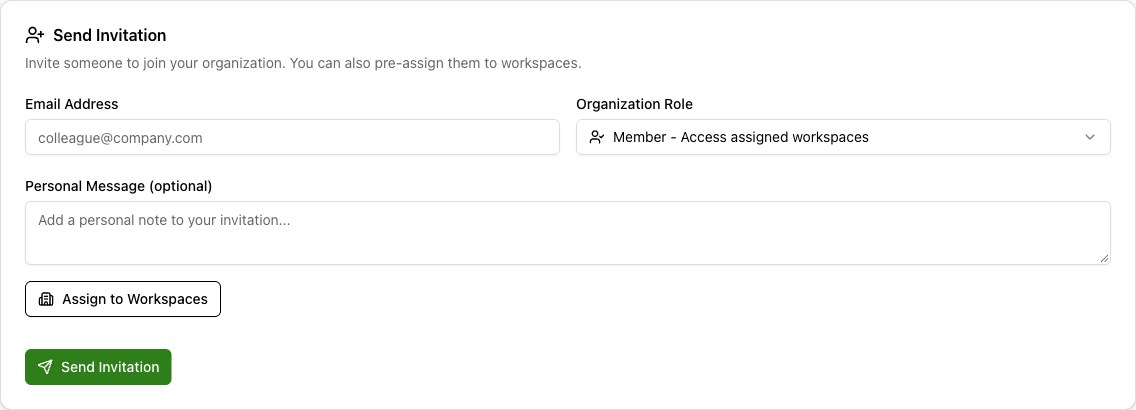
Pre-assign workspaces when you want the recipient to have client access as soon as they accept. An organization invitation does not automatically assign every client workspace.
Resend or cancel a pending invitation
The pending invitation list shows the recipient, organization role, assigned workspaces, inviter, and expiry. Use its actions to copy the invitation link, resend the invitation, or cancel it. Confirm cancellation to revoke the pending invitation.
If the person has already joined, manage their membership under Overview > Members. Cancelling an invitation is not the process for removing an existing member.
Assign an existing member to another workspace
Find the member
Open Overview > Members. Search by name or email. Review the Org Role and workspace access shown in the row.
Open the assignment dialog
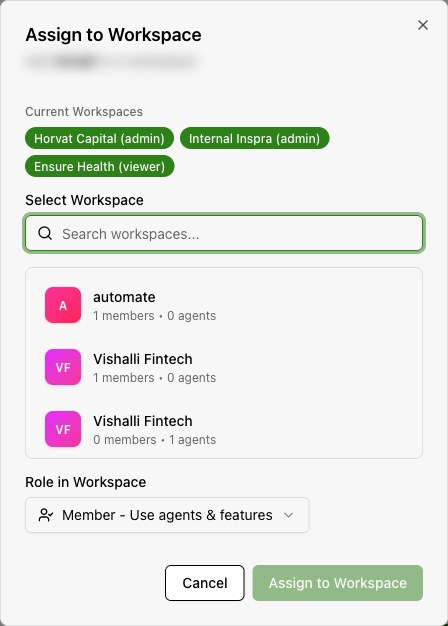
Open the member's actions menu and select Assign to Workspace. The dialog lists workspaces the member does not already belong to.
Choose the workspace and role
Select the client workspace and choose Admin, Member, or Viewer. Select Assign to Workspace to save.
Verify access
Check the updated workspace access in the member row. The person can then open the workspace from workspace selection.
Edit permissions within a workspace
Open the workspace member list
In Overview > Workspaces, expand the client row and select Manage Members.
Edit the member
Open the member's edit page and select Roles & Permissions. Review the controls for the work this person needs to do.
Save and verify
Apply the required changes and select Save Changes. Check the permissions in this workspace independently of the person's other workspace assignments.
Workspace roles provide initial permission defaults. After those defaults are applied, permissions are customizable per person and per workspace. The role label alone does not describe the person's current permissions.
Changing a workspace role resets custom permissions to the new role's defaults. Review those defaults and reapply any required custom permissions after the role change.
Change an organization role
In Overview > Members, open the member's actions menu and select Change Org Role. Choose the role and save the change. This controls organization access separately from workspace permissions.
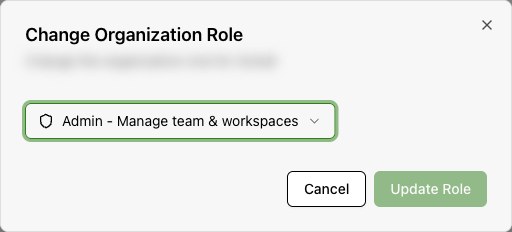
You cannot change your own organization role. Only an owner can modify another owner or assign the owner role. At least one organization owner must remain.
Change a member's login credentials
Open Change Credentials
In the member's actions menu, select Change Credentials. Verify that you have opened the intended person's dialog.
Enter only the changes needed
Change Email to update the login address. Enter a New password of at least eight characters to replace the password. Leave an unneeded field unchanged or blank.
Save the new credentials
Select Save Credentials. The login email change takes effect immediately without a separate email confirmation. Coordinate the change with the member so they know which login details to use.
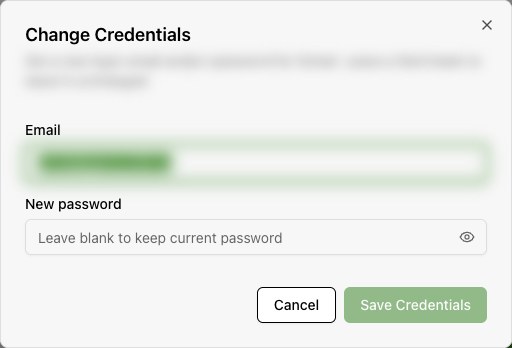
Only organization owners and admins can use this control. Only an owner can change another owner's credentials. Use account settings to change your own credentials.
Organize members with tags
Assign or remove a tag
Select Add tags or the existing tags in a member's row. Search for a tag and select it to toggle its assignment. Each selection saves immediately.
Create a shared tag
Select Manage tags. Enter a unique name of up to 32 characters and select Create tag. Return to the member's tag picker to assign it. The picker also supports creating and assigning a new tag from its search field.
Maintain the tag list
Use the color choices to recolor a tag. Use the pencil to edit its name and the checkmark to save. Use the delete control and confirm to remove a shared tag. Renaming updates the tag wherever it appears.
Filter the team
Use Tags above the member list. Select one or more tags to show people who have any selected tag. Use Clear filter to reset.
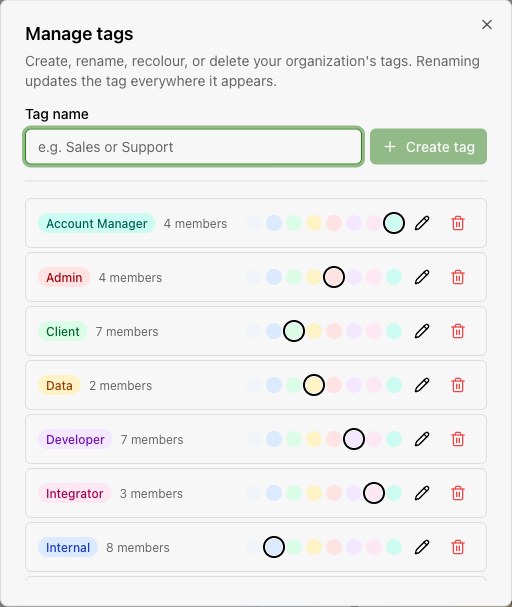
Tags help organize and filter people. A tag named Admin does not grant an admin role or change workspace permissions.
Remove access at the appropriate level
| Access to remove | Action and effect |
|---|---|
| One client workspace | Open that workspace's member edit page, select Remove Member, and confirm. The person loses access to that workspace and its resources and can be invited again later. |
| The organization | In Overview > Members, select Remove from Org from the member's actions menu and confirm. This removes their organization membership and access to its workspaces. |
| An unaccepted invitation | Cancel the pending invitation in Team Invitations to revoke its link. |
If the removed person belongs to no other organization, removing them from the organization also deletes their platform account and sign-in identity. Use workspace removal when you only need to end access to one client.
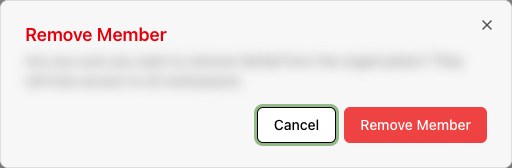
You cannot remove yourself. Only owners can remove other owners, and the last owner cannot be removed. Before removing a departing colleague, arrange another owner for their responsibilities and review assigned client tasks.
Resolve access problems
| Problem | What to check |
|---|---|
| The invitation cannot be accepted | Check the invited email and expiry. Ask an organization owner or admin to resend the invitation if needed. |
| A workspace is missing | Check the member's workspace assignments and the organization domain used to sign in. |
| A member can open the workspace but cannot perform an action | Review that person's Roles & Permissions in the affected workspace. |
| Organization controls are missing | Check the organization role. A workspace owner role alone does not grant organization administration. |
| The invitation email has not arrived | Check the recipient address and spam folder. Review the organization email sender, or share the invitation link with the intended recipient. |