

Start an offboarding
Choose the workspace
Select Start an offboarding. Choose the client workspace. Workspaces with an existing offboarding are excluded from this picker.
Record the last day
Set the date the service should end. Wind-down deadlines are measured before or after this date. Add a departure reason if useful.
Set the retention period
Under Keep their data for, enter the number of days after the last day. The form defaults to 90 days and accepts 1 to 3,650 days.
Create the checklist
Select Start offboarding. Open the workspace's wind-down panel to review tasks, owners, dates, and blockers.
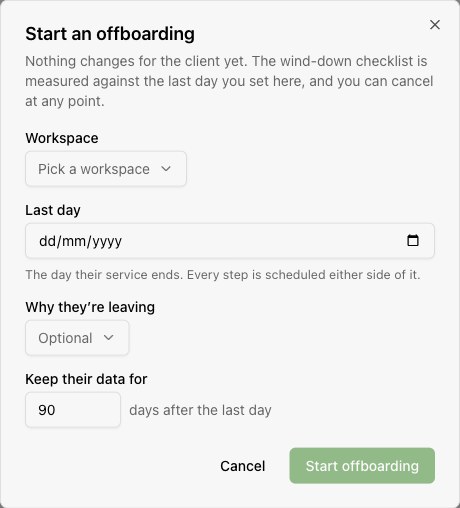
Starting offboarding creates the tracking record. It does not immediately stop calls, cancel the subscription, revoke access, or release phone numbers. Complete those actions through the relevant service controls.
Configure wind-down steps
Select Wind-down steps to edit the shared checklist. Set each task's label, manual or automatic completion, target day, and owner. Save edited rows with the checkmark, or select Add for a new step.
The target day is an offset from the client's last day. For example, -7 is seven days before, 0 is the last day, and 3 is three days after. The editor accepts offsets from -365 to 365, or a blank value for no timeline.
Follow the wind-down checklist
The client panel groups tasks under Before their last day and After their last day. Your organization can customize the shared steps. The default checklist covers:
| Work | How completion is recorded |
|---|---|
| Agree the wind-down plan | Manually confirm exports, access requirements, and when calling stops. |
| Export recordings and transcripts | Manually confirm the required archive has been delivered. |
| Port numbers or approve their release | Manually confirm the carrier arrangement before releasing numbers. |
| Issue the final invoice | Manually confirm the final bill has been sent. |
| Stop agents and calls | Automatically tracked when no agent remains live. |
| Revoke team access | Automatically tracked from the access-revocation signal. |
| Cancel the subscription | Automatically tracked from the subscription state. |
| Release numbers | Automatically tracked when no number points at the workspace. The default release step depends on porting or release approval. |
| Settle the outstanding balance | Manually confirm the balance has been settled. |
| Archive the workspace | Automatically tracked from the workspace state. |
Assign an owner to each task, including automatic tasks. Select Mark done for the next available manual task after its work is complete. A locked task identifies the prerequisite that must finish first. Automatic tasks marked ticks itself wait for the underlying platform signal.
Monitor blockers and billing
| Filter | What it highlights |
|---|---|
| Needs you | A manual task is waiting for a person. |
| Waiting on platform | A tracked signal has not completed. |
| Blocked | An unfinished prerequisite prevents another task from proceeding. |
| Still billing | The last day has passed and the tracked subscription-cancellation step is incomplete. |
| Ready to purge | Every checklist task is complete and the retention date has been reached. |
Use the search and sort controls to focus on upcoming last days, risk, or incomplete work. Completing a billing checklist task does not replace checking the actual subscription and outstanding charges.
Review retention and close the workspace
The retention date is the client's last day plus the configured retention days. Closing remains unavailable until every applicable checklist step is complete and that date has been reached.
Review remaining work
Confirm exports, number handling, access, billing, and all other required tasks are finished. Review the retention date in the client's panel.
Read the closure details
Open the Point of no return section. Check that you are closing the intended workspace.
Confirm the workspace name
Once closure is available, type the workspace name exactly and select Close and mark for deletion.
This action closes the workspace and marks its recordings, transcripts, agents, and contacts for deletion. New content cannot be created afterward. Physical removal runs separately; the offboarding record and final invoice are retained.
If the client decides to stay
Before final closure, open the wind-down panel and select Cancel the offboarding. Review any service changes already completed, such as subscription cancellation, access removal, or number release, before resuming service.