

Start with an existing workspace
First create the client workspace. Open Organization > Onboarding to find its launch checklist. The list combines shared steps with any steps added only for that client.
Onboarding tracks readiness. Creating a checklist or marking a manual task complete does not itself provision a number, publish an agent, or activate billing.
Configure your shared checklist
Open Manage steps
Select Manage steps at the top of Onboarding. Shared steps apply across your clients, so review the scope before changing or deleting one.
Name the task and choose how it completes
Use Manual for work a person confirms. Choose a tracked signal for work the platform can detect, such as a phone number assignment.
Set a target day and owner
Target days count from workspace creation. Enter a day from 1 to 365, or leave it blank for no timeline. Choose the team member responsible for the task, or leave it unassigned.
Save the step
Use the checkmark button to save an edited row. For a new row, complete its fields and select Add.
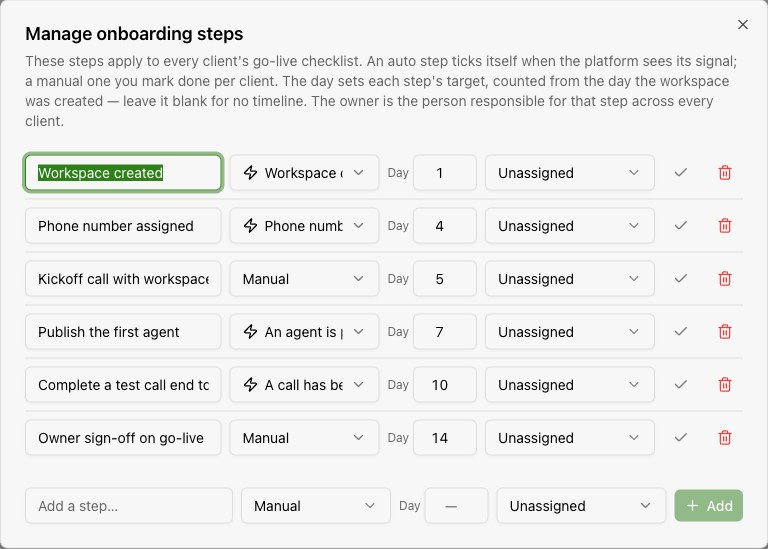
Understand automatic and manual steps
| Step type | What completes it |
|---|---|
| Workspace created | The workspace exists. |
| Phone number assigned | The platform detects a number attached to the workspace. |
| An agent is published (active) | The platform detects a published, active agent. |
| A call has been placed | The platform detects call activity for the workspace. Review the actual call result before treating the service as ready. |
| Manual | A team member completes the work and checks the task on the client's checklist. |
Steps marked Auto update from platform activity and have no manual completion checkbox. Assign an owner even for an automatic step so someone follows up when the signal is missing.
Work through a client's checklist
Find and open the client
Search for the workspace, then select its row to open Client onboarding checklist. Review progress, the current stage, and overdue tasks.
Assign responsibility
Choose an owner beside each task. A client-specific owner overrides the shared owner for that client.
Record the work
Complete the setup in the relevant workspace or Organization page. Check completed manual tasks. Use Add a note for decisions, handoff information, and outstanding questions.
Add client-specific work
Add a step for work unique to this client. Enter the task name, what you are waiting for, who or what completes it, and an optional target day.
Handle a step that does not apply
Waive the shared step for this client. It moves to Waived for this client and no longer counts toward completion. Select Put it back to restore it.
Find clients that need attention
| Filter | Use it to find |
|---|---|
| Everyone | All client checklists. |
| Needs you | Clients whose next task needs a person. |
| Waiting on platform | Clients whose current task depends on a tracked platform signal. |
| Past target | Clients beyond their onboarding target. |
| Stuck over 60 days | Clients more than 60 days beyond their target. |
| Live | Clients with every applicable checklist step complete. |
Sort by overdue time, progress, time in onboarding, or workspace name. A task with no target day has no individual overdue deadline. The checklist's latest target day determines its overall target; if no task has a target, the overview uses 14 days.
Complete the client handover
Check the client's brand, member access, provider connections, assigned number, and billing state. Review a real call and any required recording, then finish the owner sign-off task. Live describes checklist completion; confirm the workspace is also active before handing it over.
| Problem | Next step |
|---|---|
| An automatic step stays incomplete | Check the underlying number assignment, agent publication, or call activity. Adding a note does not complete an automatic task. |
| Work is complete but the client is not Live | Look for an unchecked manual task, a client-specific task, or another incomplete automatic signal. |
| A shared task does not fit this client | Waive it for that client instead of deleting it from every client's checklist. |