

Find the right conversation
| Inbox tab | What it contains |
|---|---|
| All | Client tickets and your organization's tickets to Inspra. |
| From clients | Tickets raised inside your client workspaces. |
| With Inspra | Organization tickets and escalations raised to the platform team. |
Search by subject or requester and filter by status. Check the workspace shown on a client ticket before opening it. The ticket number identifies the conversation within your organization.
Handle a client ticket
Read the ticket
Open From clients and select the ticket. Review the description, attachments, conversation history, and any related agent.
Classify the issue
In Details, set Status, Priority, and Topic. These selections save when changed.
Reply to the client
Select Reply, write the update or request for information, and select Send reply. This reply belongs to the client's conversation.
Record private team context
For information the client should not see, select Internal note and then Save note. Internal notes are marked separately and are hidden from the client.
Keep the status current
Use the status that describes the next action. Once the issue is addressed, explain the outcome in the client thread and update its status.
Choose status, priority, and topic
| Status | When to use it |
|---|---|
| Open | The issue has been raised and awaits handling. |
| In progress | Someone is investigating or implementing a fix. |
| Waiting on you | A response or action is needed from the requester. For a client ticket, that is the client; for an Inspra ticket, that is your organization. |
| Escalated | The issue needs platform attention. Raise the linked platform ticket to provide the actual escalation conversation. |
| Resolved | The issue has been addressed and the outcome recorded. |
| Closed | Work on this conversation is finished. |
Priority options are Low, Normal, High, and Urgent. Topics are Prompt, Agent, Disposition, Campaign, Telephony, Billing, and Something else. Choose the closest topic and describe the impact so the receiving team can triage the issue.
Raise an issue with the platform
Choose where to start
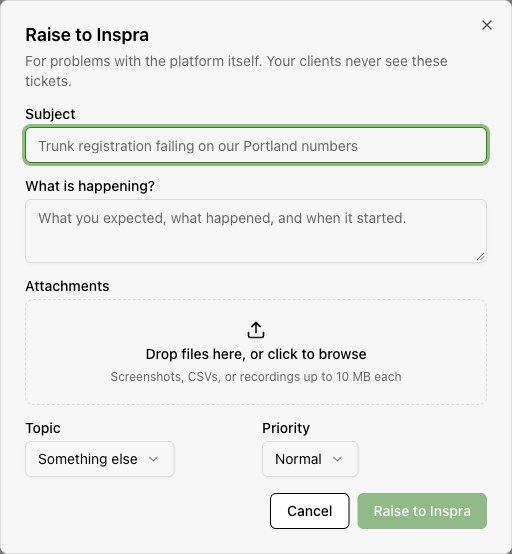
For an existing client issue, open its ticket and select Raise to Inspra. For an organization-wide platform problem, select Raise to Inspra from the Support inbox.
Describe the problem
Enter a subject and describe the expected behavior, what happened, when it started, and how to reproduce it. Select the topic and priority. A client escalation starts with the source ticket's subject and description; review that text before sending.
Attach useful evidence
Add screenshots, CSVs, or recordings through the attachment area. The upload limit is 10 MB per file. Wait for uploads to complete before submitting.
Submit and follow up
Select Raise to Inspra. Find the new conversation under With Inspra and use Reply > Send reply to respond to the platform team. A client escalation links back to its source ticket.
Know who can see each message
| Message | Visibility |
|---|---|
| Reply on a client ticket | Part of the client-facing conversation. |
| Internal note on a client ticket | Hidden from the client; available to the support tiers allowed to read it. |
| Ticket or reply under With Inspra | A separate conversation between your organization and the platform. The client cannot see it. |
Your organization's own Inspra ticket has no Internal note option. Use the client ticket's internal notes for agency context, and its Reply tab for client updates.
Platform replies do not become client-visible replies. Return to the source client ticket and share the outcome in that conversation.
Include enough detail to investigate
- The affected workspace and feature.
- The steps taken, expected result, and actual result.
- The time and timezone when the problem occurred.
- The relevant agent, campaign, call, or ticket identifier when available.
- The impact on the client and whether the problem is ongoing.
- A screenshot or recording that shows the issue without exposing credentials.
Track replies and resolve the issue
Use Organization notifications to review who receives ticket and escalation events. If an email is missing, open Support to check the conversation directly.
After a platform response, verify the outcome in the affected workspace. Update the client through their ticket, then set the appropriate status on each conversation. If a ticket cannot be loaded, confirm the organization domain and return to the Support inbox to find it.